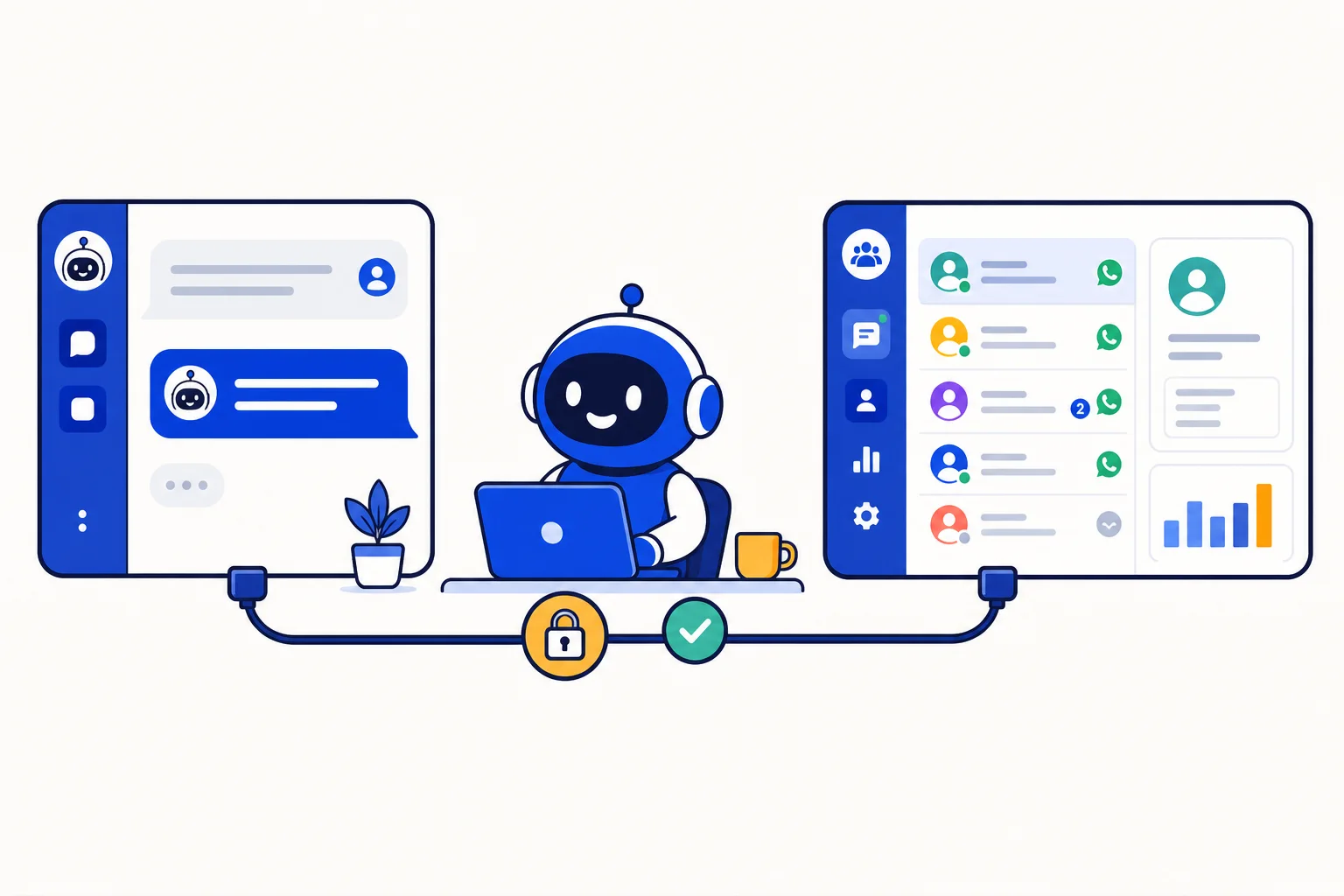
Your customer conversations already live in HellouOne. Your AI assistant, whether that is Claude, ChatGPT, Cursor or a client you built yourself, lives somewhere else. Until now, getting the two to talk meant exporting data or writing code against the API. From today, any HellouOne account can connect an AI assistant directly to its own data through the Model Context Protocol, and the assistant works inside your account with exactly the permissions of the person who connected it.
What shipped
HellouOne runs a remote MCP server at https://mcp.hellou.ai/mcp. It is one URL for every account; the credential you connect with decides which account the assistant sees. The server speaks Streamable HTTP, the transport that hosted assistants and desktop clients already support, so there is nothing to install on your side. Once connected, the assistant can read and, if you allow it, act on:
Conversations and messages, delivered as readable summaries rather than raw database rows, so the assistant understands a thread the way a teammate would.
Contacts, labels and custom attributes, including search and filters.
Inboxes, teams, agents and assignment settings.
AI agents, automation rules, macros and canned responses.
Reports: conversation volume, response times, agent and team performance, sentiment.
Account settings, working hours and the business profile.
Every tool result is capped in transit. A request that would return an enormous payload, such as a full export of a busy inbox, is trimmed before it reaches the client, so the assistant never chokes on a result it cannot process. The tools are documented in the app and at Connect AI assistants (MCP) in the HellouOne docs.
Permissions and consent
The assistant never gets more than the person connecting it. An administrator who connects Claude gives Claude an administrator's view; an agent who connects it gives it an agent's view, limited to the inboxes that agent can already open. There is no separate service account and no hidden super-user.
Hosted assistants such as claude.ai and ChatGPT use sign-in rather than tokens. You add https://mcp.hellou.ai/mcp as a custom connector, the assistant discovers HellouOne's OAuth 2.1 sign-in on its own, and HellouOne opens a consent page. On that page you pick the account, tick a single box if the assistant may make changes, and approve. Leave the box unticked and the connection is read-only: the assistant can summarise, search and report, but it cannot send a message, change an assignment or edit a setting. Access tokens last one hour and refresh automatically, and every connected app is listed, and can be disconnected, under Settings, Integrations, AI clients (MCP).
Desktop and command-line clients, including Cursor and Claude Code, use a personal token instead. You create it in the same settings screen, name it after the client that will use it, pick an expiry, decide whether it may make changes, and paste it once into the client's MCP configuration. Each token can be revoked on its own.
What you can do with it
The practical value shows up in the questions a manager asks every day and nobody has time to answer. Ask your assistant which open conversations have waited more than two hours. Ask it to summarise everything a specific customer wrote this month before you call them. Ask for the five most common topics in the sales inbox this week, or why first-response time went up on Tuesday. The assistant reads the conversations, the labels and the reports, and answers in plain language instead of handing you a CSV.
With change access on, it can also do work. Draft a canned response from the three best replies to a recurring question. Add a label to every conversation that mentions a refund. Build an automation rule and explain what it will do before saving it. The setup prompt in the docs tells the assistant to describe any change and wait for your approval before running it, which is a habit worth keeping.
How this works with HellouOne
MCP is a new door into the same account, not a new product. The shared inbox, the AI agents that answer customers on WhatsApp, the connectors to your CRM and tools, the reports and the API all stay where they are; the MCP server exposes them to the assistant you already use. Everything the assistant sees is scoped by HellouOne's own roles, teams and visibility levels, so a team lead who can only see their own inbox gets an assistant that can only see that inbox too. Customer text is passed to the assistant marked as data, never as instructions, so a message that says "ignore your rules" is just a message.
Setup takes a minute. Open Settings, Integrations, AI clients (MCP), and copy the ready-made prompt. Paste it into Claude, ChatGPT, Cursor or Claude Code and the assistant connects itself, signs in or uses the token, and reports back what it can do. The MCP server is available on every plan, including the free trial, and the full reference, including the OAuth details and the JSON configuration for other clients, is at one.hellou.ai/docs/mcp.html.