The chat window on your website is often the first conversation a visitor has with your business. If it looks generic, opens on the wrong screen, or hides the answers people came for, that first conversation starts with friction. In HellouOne, the website widget is not a fixed snippet you install and forget. Admins configure it inbox by inbox, each website inbox has its own widget, and every change is previewed live and reaches your site without touching the code. This post walks through what you can change and why each part matters. It is based on our help guide: Personalize your website widget (https://help.hellou.ai/hc/hellou/articles/1791206258-personaliza-el-widget-de-tu-sitio-web).
Where you configure it
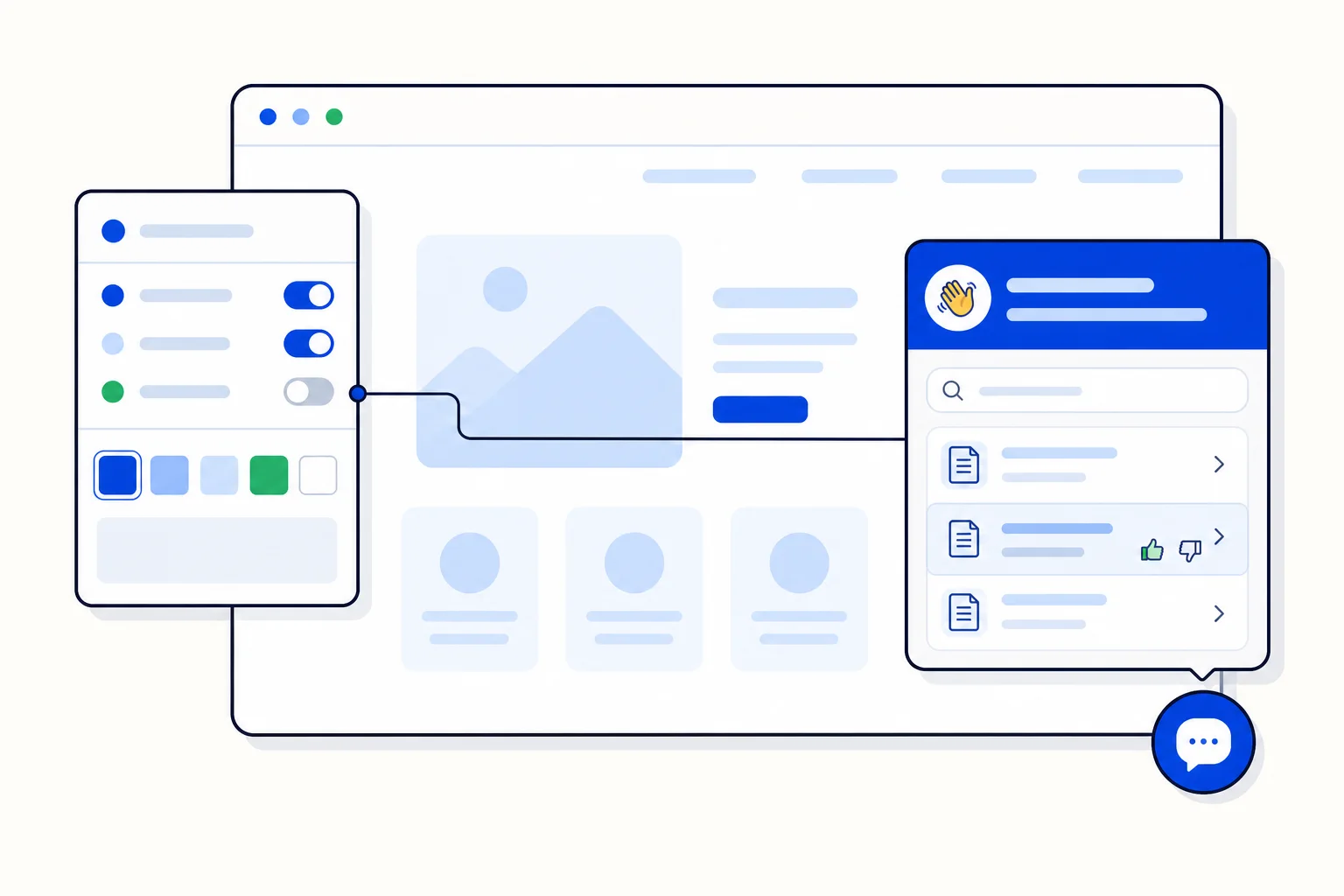
Go to Settings, Inboxes, click the settings icon on your website inbox, and open the Widget Builder tab. Options sit on the left and a preview sits on the right, and you can view that preview as a computer or as a phone. When you finish, click Update Widget settings. Widgets already installed on your site pick up the change on the next page load, so there is no new code to paste for a design change.
That workflow changes how teams treat the widget. Instead of filing a developer ticket to change a color or a greeting, an admin tests the change in the preview, publishes it, and sees it live on the next load. Design stops being a release and becomes a setting.
Brand: color, theme and the first screen
The Brand section sets the brand color used in the header and the buttons. If you want the buttons to use a different color, uncheck the option that makes buttons use the brand color. You also choose the theme, light, dark, or following the visitor device, and the header style, solid color or gradient.
Brand also decides where the widget opens: Home, Chat, or Help center. That choice is a small decision with a real effect. A sales site may want Chat first, so a ready buyer reaches a person in one click. A support heavy site may want the Help center first, so visitors find an article before they write. Home works when you want to greet visitors and offer both paths.
The home screen: a greeting in each language
The home screen greets the visitor and offers to write to you or search for an answer. You set a greeting and a subtitle, one per language: pick the language from the list and write the text. A visitor whose language has no greeting sees the inbox welcome title instead.
Two toggles help set expectations. Show team avatars tells the visitor who will answer, and show expected response time tells them when. A widget that shows real faces and a realistic wait feels like a conversation with a team, not a form into the void, and visitors write better first messages when they know what happens next.
Your help center, inside the widget
If the inbox has a connected help center and you turn on Show the help center in the widget, the widget gains a Help tab. Visitors search, browse topics, and read your published articles without leaving the page. At the end of each article they are asked if it was useful, and if they still have questions they can click the option to talk to you and start a conversation.
You connect a help center in the Settings tab of the inbox, choosing one in the Help center field. Without a connected help center, the widget does not show the tab.
You also decide when the write button appears, under Before a message. Message at any time keeps the button always visible. Help first shows the button once the visitor has searched or read an article. Ask and suggest lets the visitor describe their question, see related articles, and still send it.
Back in HellouOne, you see the results. In Help center, Articles, each article shows the percentage of visitors who found it useful, with vote counts on hover. And when someone writes to you from an article, the conversation side panel shows Arrived from the article, with a link to what they were reading, so your agent starts with context instead of asking the visitor to repeat themselves.
The button: side, icon, text and distance
The round button that opens the widget shows the Hellou logo by default, and you control how it sits on your page. Choose its side, left or right, and its icon, Hellou, chat, or question. Button text is set per language, and you can leave it empty for an icon only button. On phones the text is hidden unless you turn on showing button text on phones too.
Distance from the side and from the bottom is set separately for computers and phones, which matters because a button that clears a cookie banner on desktop can cover content on a small screen. You can also show a dot on the button when there are unread replies, make the button pulse once when the page opens, or hide the button entirely if you open the widget from a button of your own on your site.
Shape and extras
Corners for the panel and the button range from straight to fully rounded, so the widget can match a sharp corporate site or a soft consumer brand. You can mark replies written by an AI agent, which shows an AI Agent label on those messages, allow expanding the widget on computers, and control the Powered by HellouOne line, which can be removed on the Enterprise plan.
Transparency like the AI label is worth keeping on. Visitors are more comfortable continuing a chat when they know which replies came from an agent of your team and which came from AI, and your team inherits that trust when a person takes over.
The embed code, and a note on hand written options
Click Show embed code below the preview to copy it. You only need it once, for a site that does not have the widget yet. If your team hand wrote options inside the code, such as the side or the button text, those options keep priority over what you configure in the builder. Values the previous builder pasted by default do not count as hand written, so widgets installed with it still follow your new settings. If this browser saved settings from the previous builder, you will see a notice with an Import them button to bring them into the new editor.
The practical routine is simple. Open the builder, set brand and opening screen, write greetings in the languages your visitors use, connect your help center and choose when the write button appears, place the button so it clears your page on both computer and phone, and update. Your website chat starts looking like your business, and every later adjustment is a settings change, not a code change.
Source: Hellou help center, Personalize your website widget: https://help.hellou.ai/hc/hellou/articles/1791206258-personaliza-el-widget-de-tu-sitio-web