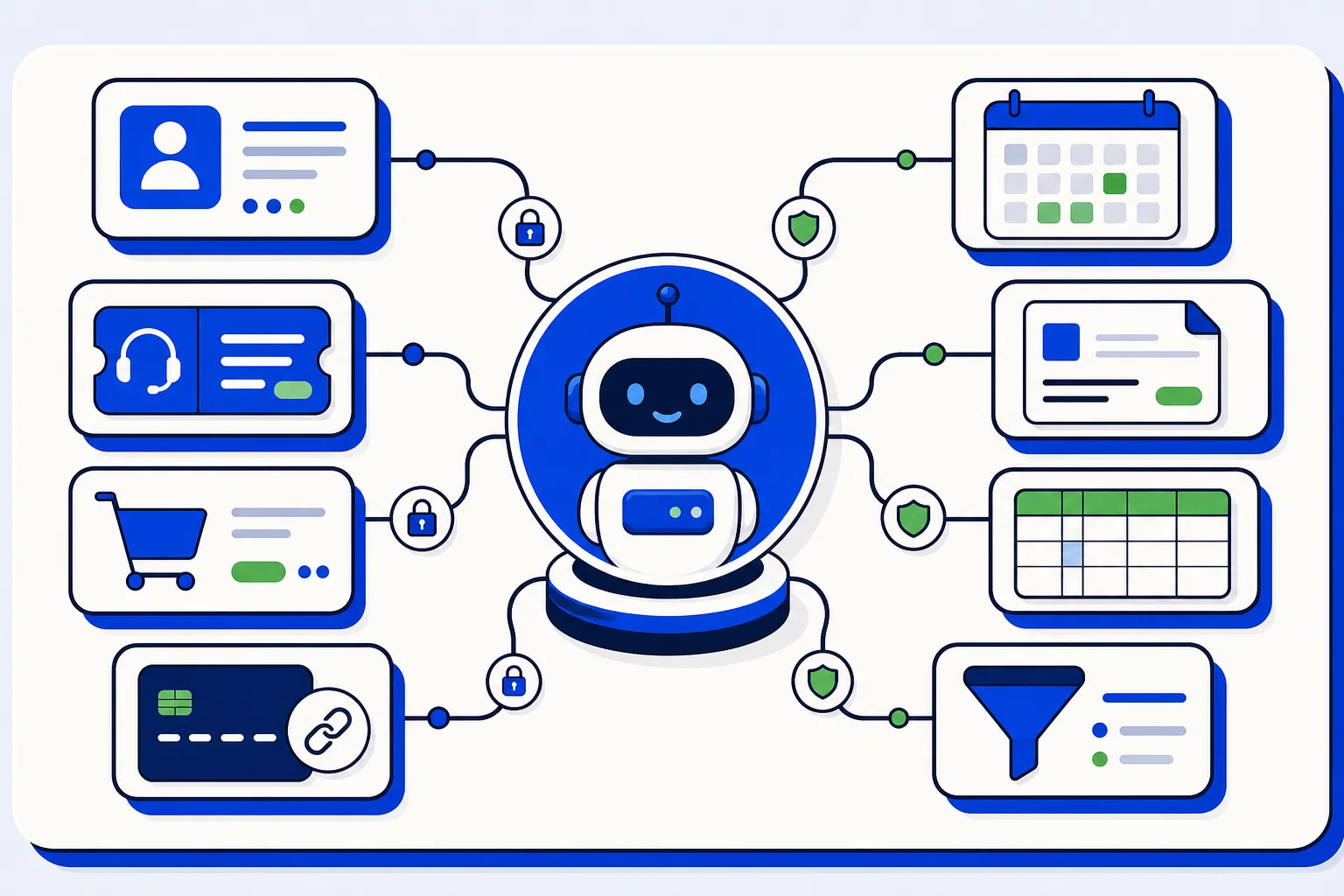
Your customer conversations do not live alone. A new chat should reach your CRM, a finished conversation should update a record, and a changed contact should not need someone copying fields by hand at the end of the day. In HellouOne, Settings, Integrations is the place where those connections gather, and webhooks are the simplest of them: a live feed of what happens in your account, sent to the system you choose, at the moment it happens. This article explains what the Integrations page holds, how to create a webhook, and how to verify that a delivery really came from HellouOne.
What lives under Integrations
Settings, Integrations gathers the services HellouOne can connect to your account. Which cards you see depends on your plan and on what the Hellou team has enabled for you. An account with telephony, for example, sees the Porta PBX integration, which turns on the dialer, click to call, call history and contact sync. One distinction saves confusion. Your AI agent's connections to your CRM, store or calendar do not live on this page. Those are set up in LIA, Marketplace, Connectors, in the guide about connecting services to your AI agent. The Integrations page is about your account as a whole, while connectors are about what a specific AI agent is allowed to use while it talks to customers. Keeping the two apart helps you debug in the right place: account level behavior here, agent level tools there.
What a webhook does
A webhook sends another system, your CRM, an automation flow, a data warehouse, each event from your account as soon as it occurs: a new conversation, a message, an updated contact. HellouOne makes a POST request with the event in JSON to the address you provide. That push model changes the work. Instead of polling an API and asking what changed, your system reacts when something happens. A lead's first message can create or update the CRM record while the conversation is still open. A message event can feed reporting without a nightly export. An updated contact can keep two address books from drifting apart. None of this needs a person watching a dashboard and retyping what they see.
Creating a webhook, step by step
Creating one takes a few minutes. Open Settings, Integrations, Webhooks, and press Add new webhook. Paste the address that will receive the events. It must be https and reachable from the internet. Then check the events you need; only the events included in your plan will appear. Save, and deliveries start for the events you selected. Choose events with intent. Subscribing to everything because it might be useful creates noise your receiving system has to absorb, store and secure. Start with the events that drive a real process on the other side, prove that process works, and add more when a concrete need appears. A short, trusted feed beats a firehose nobody reads.
Checking that a delivery is really ours
Every webhook has a signing secret, visible when you edit the webhook, with a button to copy it. Each delivery carries the header X-HellouOne-Signature with a sha256 signature, which is the HMAC-SHA256 of the request body using that secret. Your system should recompute the signature over the body exactly as it arrived, without converting it back to JSON first, and discard anything that does not match. That detail, using the raw body as received, is the step teams most often get wrong, and it is the difference between a verification that works and one that fails on legitimate deliveries. The header name is kept for compatibility with existing integrations, so systems already listening for it keep working. Treat the secret like a password. Store it in your system's secret storage, not in code or in a shared document, and limit who can view it in HellouOne to the people who administer integrations.
Rotating the secret when you need to
If a secret leaks, edit the webhook, press Rotate secret, then Rotate. The previous secret stops working at once, including for deliveries that were already queued, so update your receiving system right away. Plan the rotation as one move: change the secret in HellouOne and deploy the new value in your system in the same window, then watch the next deliveries confirm that verification passes again. Rotation is also good hygiene after a vendor change or a staff change on the receiving side. A webhook that quietly points at a system nobody owns anymore is a data leak in slow motion. Review your webhook list as part of offboarding and vendor reviews, and delete what no longer serves a process you can name.
Where to go deeper
The full list of events, the format of each one, and the API for managing webhooks live in the API reference, in the Webhook events section. Start with one integration that removes manual work your team feels every day, verify signatures properly, and expand from a feed you trust. That is how a conversation platform becomes part of your stack instead of another island beside it.
Source: Hellou help center, Integrations and webhooks: https://help.hellou.ai/hc/hellou/articles/1791216503-integraciones-y-webhooks