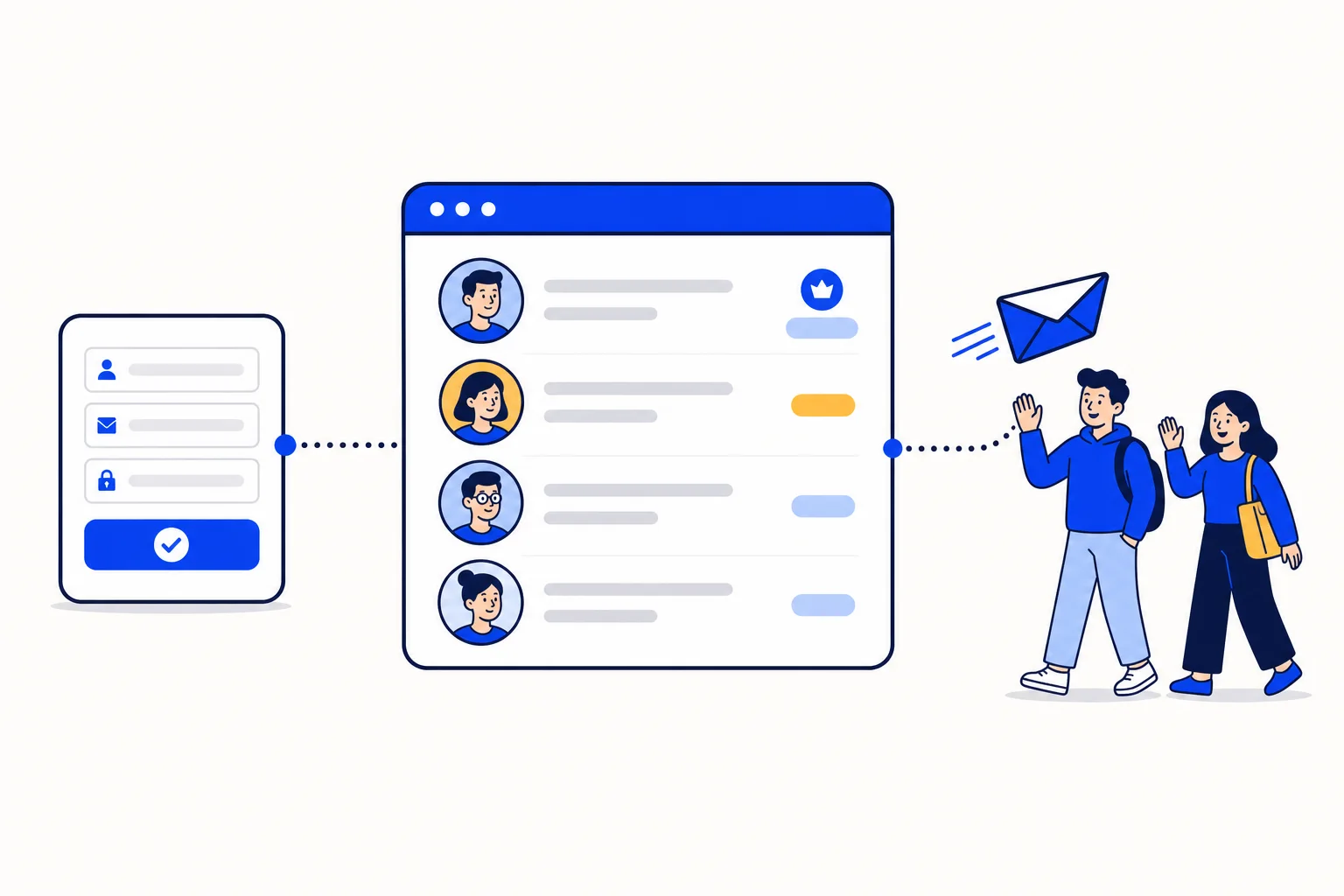
The first ten minutes in a new tool decide a lot. Set the account up carelessly and you end up with everyone as an administrator, a shared login nobody can trace, and a former employee who can still read customer chats months later. Set it up with a little care and every conversation has an owner, every change has a name on it, and adding or removing someone takes seconds. Here is how to get HellouOne right from day one.
The steps below follow the help center article Crear tu cuenta e invitar agentes, with some advice on top from what we see working for teams.
Step 1: create the account
Open the HellouOne sign-up page.
Enter your company name, your name, your email and a password.
Confirm your email with the link we send you. After that you can sign in to the dashboard.
Use a work email for the first account rather than a personal one. The person who creates the account becomes its first administrator, and it is easier to hand over a company address than to untangle a private inbox later.
Step 2: invite your team
Go to Settings, Agents. This screen lists everyone in the account, their role and whether they have accepted their invitation yet. To add someone:
Click Add Agent.
Type their name, choose a role and enter their email.
Click Add Agent again to send the invitation. The person receives an email to create their own password.
Invite each person with their own email. Shared logins are the most common mistake we see: they make it impossible to know who replied to a customer, they break automatic assignment because the system thinks one person is doing the work of five, and they mean you cannot remove one person without locking everyone out.
Administrator or Agent: choosing roles
HellouOne has two roles, and the difference is simple:
Administrator: configures inboxes, agents, teams, automations and AI agents, and sees every conversation in the account.
Agent: handles the conversations assigned to them, plus unassigned conversations in the inboxes they belong to.
Most of your team should be agents. Give the Administrator role to the one or two people who actually configure the account, usually the owner and an operations or support lead. Agents still do everything they need to serve customers; they just cannot change the setup under everyone else's feet. Because agents only see the inboxes they belong to, the role also keeps sales chats away from the support team and the other way round, if that is how you organise inboxes.
Removing access
When someone leaves, open Settings, Agents and click the red icon to the right of their name. Access ends immediately. Their past replies stay in the conversation history under their name, so you keep the full record of what was said to each customer, and the conversations they owned can be reassigned to the rest of the team. Do it on their last day, not when someone remembers a month later.
How this works with HellouOne
Accounts and roles are the foundation the rest of the HellouOne shared inbox is built on. Every WhatsApp number you connect becomes an inbox, and you choose which agents belong to it. Automatic assignment spreads new chats across the agents in each inbox, and when an AI agent hands a conversation to a person it goes to someone with access to that inbox. Because every reply is tied to a named agent, reports show real response times per person, and when someone leaves, their customers stay with the company instead of walking out with a phone.
A good first day looks like this: create the account, invite your team with their own emails, keep administrators to the few who configure things, connect your WhatsApp number and add the right agents to that inbox. You can try all of this during the free trial, which includes 2 human agents and 2 inboxes, before you pick a plan on the pricing page. Learn more in the help center: Crear tu cuenta e invitar agentes.