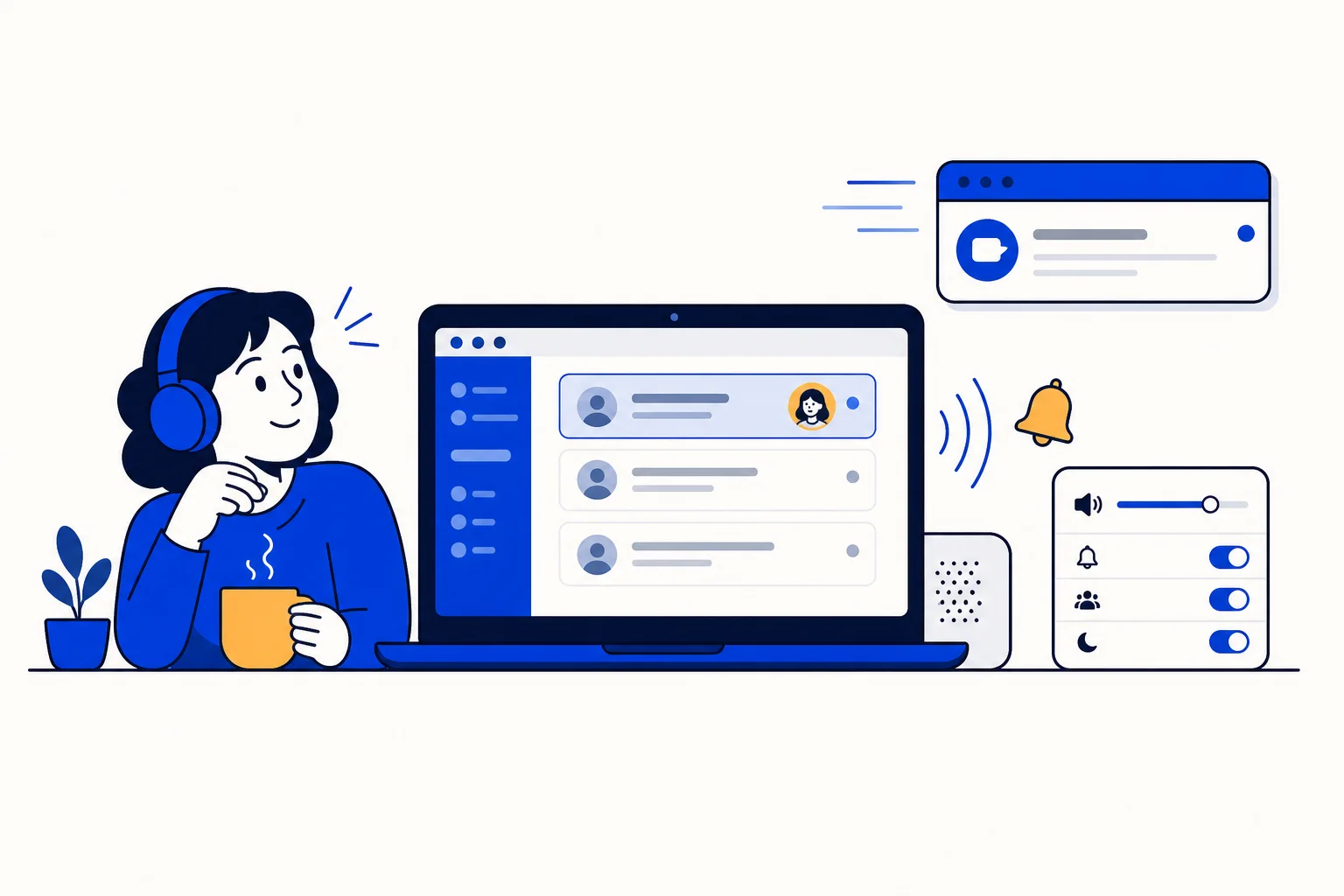
A customer who writes on WhatsApp expects an answer in minutes. Most of the time the delay is not that nobody could reply; it is that nobody noticed. The agent was in another tab, the chat arrived while they were on a call, or the assignment landed quietly in a list they were not looking at. HellouOne's notification sounds exist to close that gap, and with a few minutes of setup an administrator can make sure the right person hears the right thing.
This guide walks through the options, the defaults we suggest for a support team, and one browser quirk that catches almost everyone. The full reference is in the help center article Sonidos de notificación: configurar avisos para tu equipo.
Three events, each with its own sound
HellouOne can play a sound for three different events, and each one is switched on or off separately:
A conversation is assigned to you: plays when a conversation becomes yours, whether that came from automatic assignment, a teammate or an automation. It always plays, even when HellouOne is in the foreground, because it means there is new work for that person.
New message: plays when a customer writes. It never plays for the conversation the agent already has open, and it is the only event with a filter for which conversations count: none, only those assigned to you (the recommended choice for teams using automatic assignment), or every conversation you can see, which suits supervisors and small teams but gets noisy in large ones.
You are mentioned: plays when a teammate writes your @name in a private note. It also always plays.
There are four built-in tones, Ding, Bell, Chime and Pop, and each can be previewed before you pick it. Use a different tone for each event so an agent knows what happened without looking at the screen.
Account defaults and personal overrides
Administrators set the starting point for everyone in Settings, Notification sounds. Changes save as soon as you make them; there is no save button. A single volume control covers all sounds, and the default of 70 percent works with both headphones and laptop speakers.
Each agent then sees the same section in their own profile settings and can change anything for themselves. Their choices win over the account defaults. If an administrator later changes a default, it only affects agents who have not customised that option, so someone who turned off new-message sounds stays silent even if the account turns them on.
Options that cut noise and stop misses
Play the new-message sound only when the panel is in the background: new messages chime only when the HellouOne tab is not visible. Assignments and mentions still play. Turn this on if the team says there are too many sounds while they work.
Keep alerting me until I read it: repeats the alert every 15 seconds, 30 seconds, 1 minute or 2 minutes until the agent opens the conversation. If several are waiting, it repeats the most important one first (assignment, then mention, then message). One minute is a good starting point for teams where a slow reply loses customers.
Also show a desktop notification: adds a Windows, macOS or Linux system notification with the contact's name on top of the sound.
Teams can also upload their own tones, for example a brand chime or a different sound per department. Files can be MP3, OGG or WAV up to 1 MB, with up to 20 custom sounds per account, and every upload appears in every agent's sound picker. If you delete a sound someone is using, that person falls back to the default tone.
Why you should turn on desktop notifications
Browsers block audio from a tab until the person has clicked somewhere on the page. In practice, an agent who opens HellouOne in the morning and switches straight to another window without clicking will not hear the first sound. A desktop notification still reaches them. So we recommend switching on desktop notifications in the account defaults, and asking each agent to switch on the same option in their profile and choose Allow when the browser asks. The permission belongs to each person and each browser, so an administrator cannot grant it for them. A quick habit also helps: each morning, press play on any tone once and audio is unlocked for the rest of the session.
How this works with HellouOne
Sounds sit on top of everything else the HellouOne shared inbox already does. When an AI agent hands a WhatsApp conversation to a person, the handover is an assignment, so the assigned agent hears it immediately, even with the panel open. Automatic assignment plus the assigned-to-me filter means each agent hears only their own chats, while a supervisor can follow every conversation. Mentions in private notes turn the inbox into a place where a teammate can pull in help and know it was heard.
A setup that works well for most support teams: assignment on with Bell, new message on with Ding for conversations assigned to you, mentions on with Chime, volume at 70 percent, background-only off unless the team asks for it, repeat every minute, and desktop notifications on. Learn more in the help center: Sonidos de notificación: configurar avisos para tu equipo.