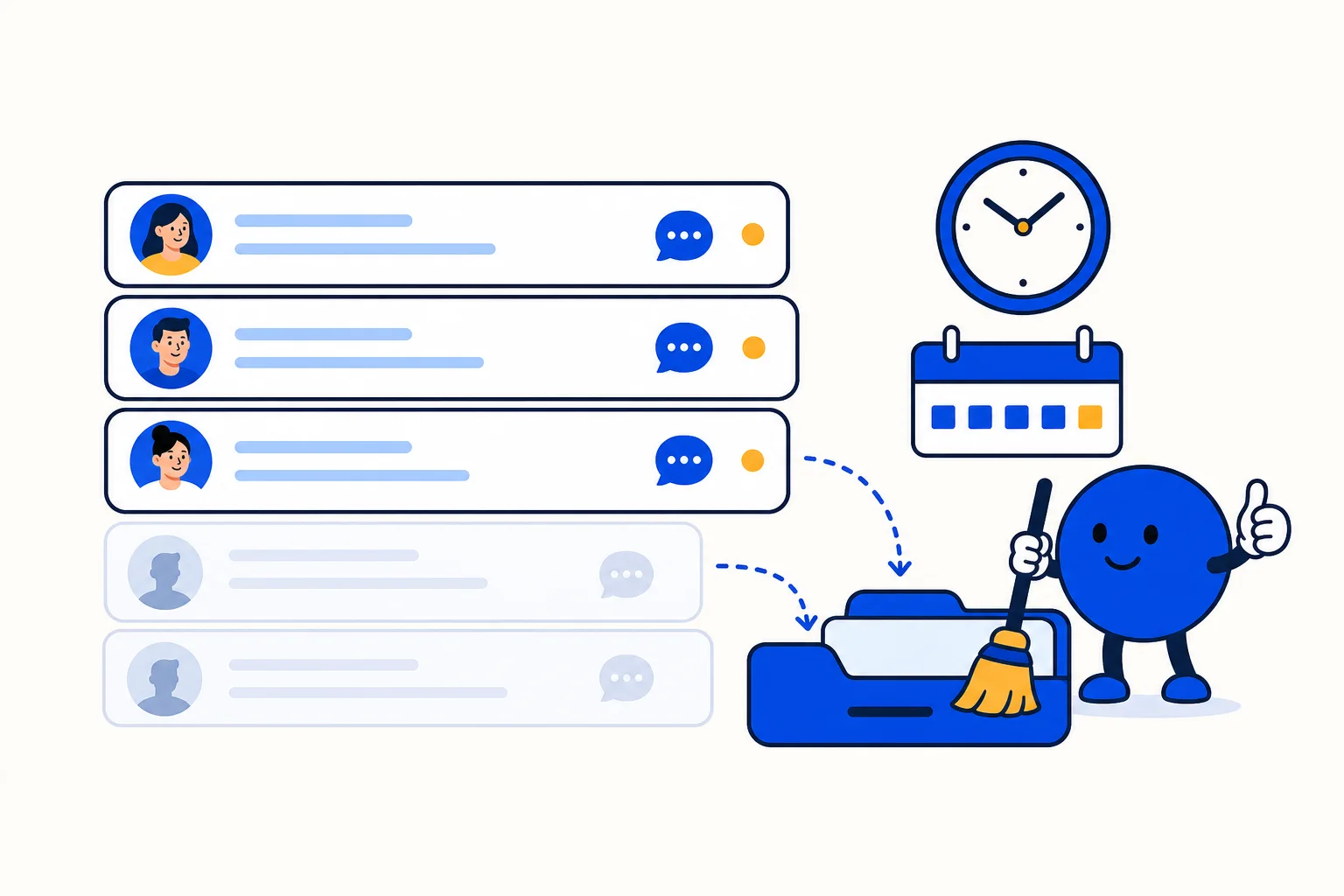
A resolved conversation is not a deleted conversation, and it is not a lost one. When you resolve a conversation in HellouOne, the full history stays on the contact, and if the customer writes again, the conversation reopens on its own. Resolving simply says that this customer has been helped for now. That small distinction matters, because teams sometimes avoid resolving conversations out of concern that the record will disappear. It will not. What does disappear, in a good way, is the noise in your inbox. If nobody resolves anything, the Open list grows until it becomes impossible to see who is actually still waiting, and customers who need help can be hidden among conversations that were finished hours or days earlier. To use the inbox well, it helps to understand its four states. Open means someone on the team must respond, and it is the list you see when you enter. Pending means the AI agent is handling the conversation. A pending conversation does not appear in Open, and it only moves there when the assistant transfers it to a person or when an agent takes it. Snoozed means you hid the conversation until a set time or until the customer replies, and when that moment arrives it returns to Open by itself. Resolved means the customer was already helped, and a new message from them reopens the conversation automatically. A status filter above the list lets you view any one state, or all of them together, when you need a wider picture. The daily routine is straightforward. Help the customer until their question is answered, or until the work is in someone else's hands. Then click Resolve at the top right, and the conversation disappears from Open. If you are waiting for the customer to confirm something, do not leave the conversation sitting in Open. Use the menu next to Resolve and snooze it instead, choosing to hide it until a set time, until tomorrow, or until the customer replies. If the conversation belongs to someone else, assign it from the Assigned Agent control in the right panel, or mention that person with an @ in a private note so they are drawn in. A practical rule ties all of this together. When you close the window, every conversation you touched should be resolved, snoozed, or assigned to whoever continues with it. If a conversation is open and yours, the system understands that the customer is still waiting for you, even when in reality you are waiting for someone else. Keeping that rule is what makes the Open list trustworthy for the whole team. Some closing can also happen automatically, when an admin enables it. Open conversations with no activity for several days can resolve on their own, through the automatically resolve conversations setting in the account settings. Pending conversations with an AI agent that a customer abandoned can also resolve after a period of inactivity, which is configured in the Inactivity tab of the AI agent. In both cases, a new message from the customer reopens the conversation, so automatic closing tidies the inbox without cutting the customer off. Working alongside an AI agent follows the same logic. The agent replies while the conversation is Pending, and it transfers the conversation only when a person is needed, moving it to Open and assigning it. That happens, for example, when the customer asks for a person, when the customer picks a product, when the customer gets upset, or when the customer asks something the assistant cannot solve. Outside business hours, the agent keeps replying and marks the transfers that happen after hours, so the team can see the context when they return. A few shortcuts make the routine faster. Cmd or Ctrl plus K opens the command menu, where you can type resolve and press Enter. Cmd or Ctrl plus the slash key shows all the keyboard shortcuts available to you. And when you hover over a conversation in the list, you can use Assign to me to take it without even opening it. None of these habits is complicated on its own. Together, they keep your Open list short, honest, and focused on the customers who are genuinely waiting for a reply.
Read the full guide in the Hellou help center: https://help.hellou.ai/hc/hellou/articles/1791420000-cerrar-conversaciones-y-mantener-tu-bandeja-al-dia