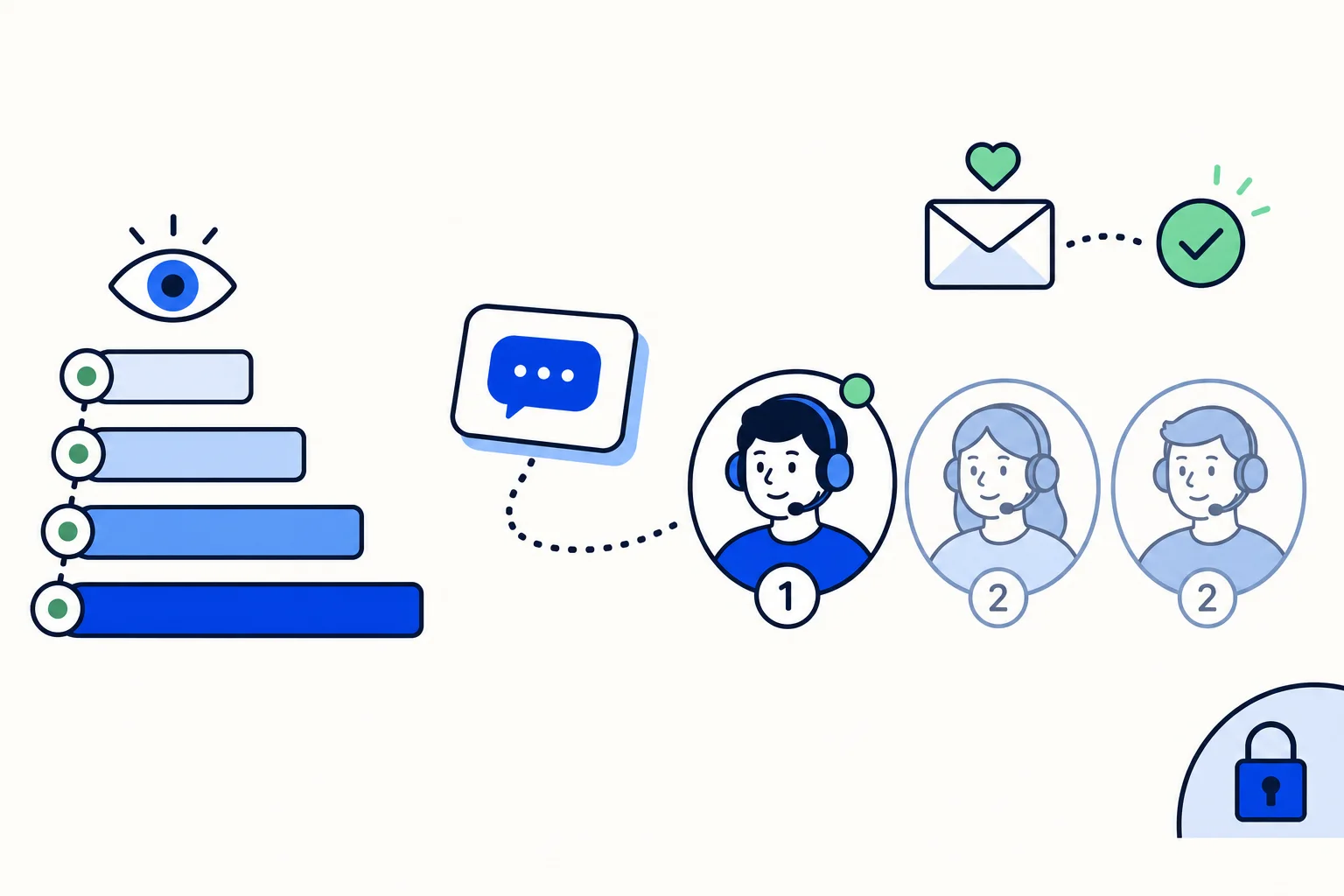
As soon as more than a handful of people answer customers, assigning every conversation to a named person stops working. The billing question waits for whoever happens to know about invoices, the sales lead sits with a support agent, and the manager spends the day forwarding chats. Teams in HellouOne fix this by letting you send a conversation to a group of people defined by what they handle, and letting HellouOne pick the right member.
This guide explains what teams are for, how to create one, and how to control who gets a team conversation first. It follows the help center article Equipos: agrupar agentes por responsabilidad.
What a team is
A team groups agents by what they handle: sales, support, billing, or a location such as one branch or store. One person can belong to several teams, so a senior agent can sit in both support and billing. Teams are created and managed in Settings, Teams.
What teams are used for
Assigning a conversation to a team instead of a person. HellouOne then picks a member of the team according to your assignment rules.
Routing AI agent handovers. Each transfer area of an AI agent can point to a team, so a customer who says "I want to talk about my invoice" reaches Billing rather than whoever is free.
Automation rules that assign by team, and conversation filters by team.
Visibility. With the visibility level that shows an agent their own conversations plus their teams' conversations, an agent can see conversations assigned to their teams even when they are not theirs, which helps colleagues cover for each other.
Creating a team
Click the button to create a new team.
Enter the team name and a short description.
Decide whether to turn on auto-assign for the team. With it on, a conversation assigned to the team is distributed automatically among its members. With it off, the conversation stays with the team until someone takes it.
In the next step, tick the agents who belong to the team and add them.
Auto-assign suits teams that should share the load evenly, such as a support desk. Leaving it off suits small specialist teams where people prefer to pick conversations from a shared queue.
Who gets a team conversation first
By default, team members take turns. If you want a lead to get the first offer, open the assignment settings and set a priority order for the team: priority 1 is offered the conversation first, and the others come in when that person is not online. Priorities can also be set per inbox and team combination, so the same team can have a different lead in each inbox, for example one lead for the Mexico number and another for the Colombia number.
Editing or deleting a team
The pencil icon lets you change the name, description and members. If you delete a team, the conversations assigned to it lose the team but keep their agent, their history and their labels, so nothing a customer said is lost.
How this works with HellouOne
Teams sit at the center of how the HellouOne shared inbox routes work. An AI agent answers on WhatsApp, recognises when a person is needed and hands the conversation to the right team through its transfer areas. The team's assignment settings pick the member, taking turns or following the priority order, and the visibility level decides who else can see it. Automation rules can assign by team too, so a conversation from a campaign or a keyword can go straight to the group that owns it. The full detail of turns, priorities and visibility is in our guide to assignment rules in HellouOne.
A simple starting setup: one team per area your customers ask about, auto-assign on for the teams that should share load, a priority 1 lead where you want one, and each AI agent transfer area pointed at the team that should take over. Learn more in the help center: Equipos: agrupar agentes por responsabilidad.