A voice campaign is easy to launch and hard to watch. Once the dialer is running, a supervisor wants answers to simple questions: are there enough agents free, are calls connecting, is anyone stuck on a long pause, and how far along is each campaign. Reports answer those questions after the fact. The Live Monitor in HellouOne answers them while the campaign is still running.
This guide walks through what the Live Monitor shows and what you can do from it. It follows the help center article Monitor en vivo: tus campañas de voz en este momento, which is the reference if anything on screen looks different.
Who it is for and where to find it
The Live Monitor is built for supervisors. It is available to administrators on plans that include contact center, and it updates on its own every few seconds, so there is no need to refresh the page.
To open it, click the phone icon in the left bar to open Voice, then choose Live Monitor under Activity.
Seven counters at the top
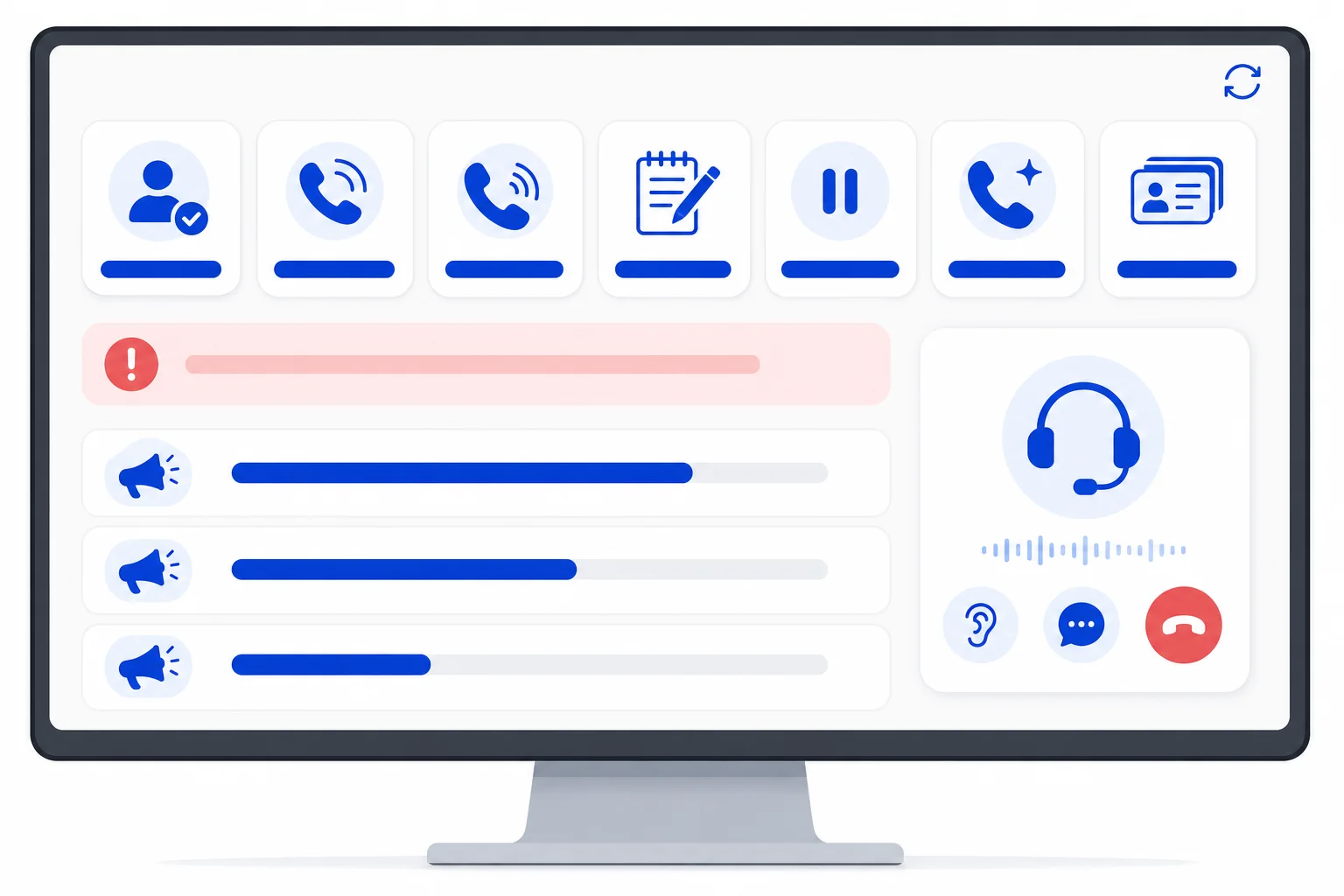
The top of the page adds up every campaign that is running or paused into seven counters:
Available: agents connected to a campaign and ready for the next call.
Ringing: agents whose phone is ringing with a campaign call.
On call: agents talking to a contact.
In wrap-up: agents finishing the notes from their last call.
On pause: agents who took a pause with a reason.
Active calls: campaign calls in progress, including the ones an AI agent is making.
Pending contacts: contacts still waiting to be called.
An agent who works two campaigns at the same time counts in each one. Agent presence is also shared between campaigns: an agent on pause is on pause in every campaign.
Red alerts when something needs you
Below the counters, red alerts appear when something needs attention. There are two kinds:
A running campaign staffed by people has contacts waiting to be dialed and no agent available to call them. Click the alert to open that campaign. AI campaigns never show this alert.
An agent's pause has gone past the limit set for that pause reason in the Contact Center settings. The alert shows how long the pause has lasted against the limit.
If the page loses its connection to the server, it says so and keeps showing the last data it received. In that case the numbers are not live until the connection comes back.
The campaign list
Under the alerts there is one row for each running or paused campaign. You can narrow the list by Status (running or paused) and by Direction (outbound or inbound). Each row shows:
The campaign name, with tags for the channel, the direction and a paused tag when it is paused.
Agents on a call out of the total agents in the campaign.
The campaign's active calls.
Progress: contacts already called out of the total.
Contact rate: the share of contacts who answered.
When no campaign is running or paused, the list says so.
Inside a campaign
Click a campaign name to open its detail below the list, on the same screen, and click again to close it. The page address changes too, so you can share the link with a colleague.
The detail shows:
Campaign buttons: Pause or Resume, Edit campaign, End and Report. They act on the campaign immediately, so use them with care. End stops every call in progress and cannot be undone.
Its numbers: total, pending, on call, contacted, completed, not contacted, contact rate and answer rate.
Live calls: each call in progress with the agent, the contact, the phone number, the duration and the status (ringing or connected). From here an administrator can listen, whisper (speak only to the agent), barge in, transfer or hang up.
AI calls in progress, for campaigns worked by an AI agent: how many calls are running at once against the limit, the contact and status of each call, and the options to open the conversation or take the call so a person continues it.
Dialing queue: the contacts being dialed or still in line, with the agent assigned to each one.
Agents: one card per agent with their status (ready, ringing, on call, wrap-up, on pause or signed out), a warning when a wrap-up runs long, and a menu to sign the agent out or remove them from the campaign. Agents appear once they open their console.
Settings: the dialing mode, the calling window, maximum attempts, dialing ratio, caller IDs and time zone.
What the Live Monitor does not cover
The Live Monitor covers voice campaigns. Calls that come in outside a campaign appear in the live panel and in the call history, which are explained in Call history and the live call center panel. For results over time rather than right now, open the campaign report under Reports in the same menu.
How this works with HellouOne
The Live Monitor sits in the same Voice menu as the campaign reports, and a supervisor moves from a red alert to the campaign, the live call and the agent card on one screen. Campaigns staffed by people and campaigns worked by AI voice agents show up side by side, and an administrator can take an AI call in progress so a person continues it.
It pairs well with the rest of the campaign tooling: you can add or remove agents on a running campaign when the alert says contacts are waiting, and set up call outcomes and wrap-up for your campaigns. For contact center teams, see HellouOne Connect for contact centers.
A simple routine for a campaign day: keep the Live Monitor open on a second screen, act on red alerts first, check that the contact rate and progress move the way you expect, and open the report at the end of the day.
Full reference in the help center: Monitor en vivo: tus campañas de voz en este momento.