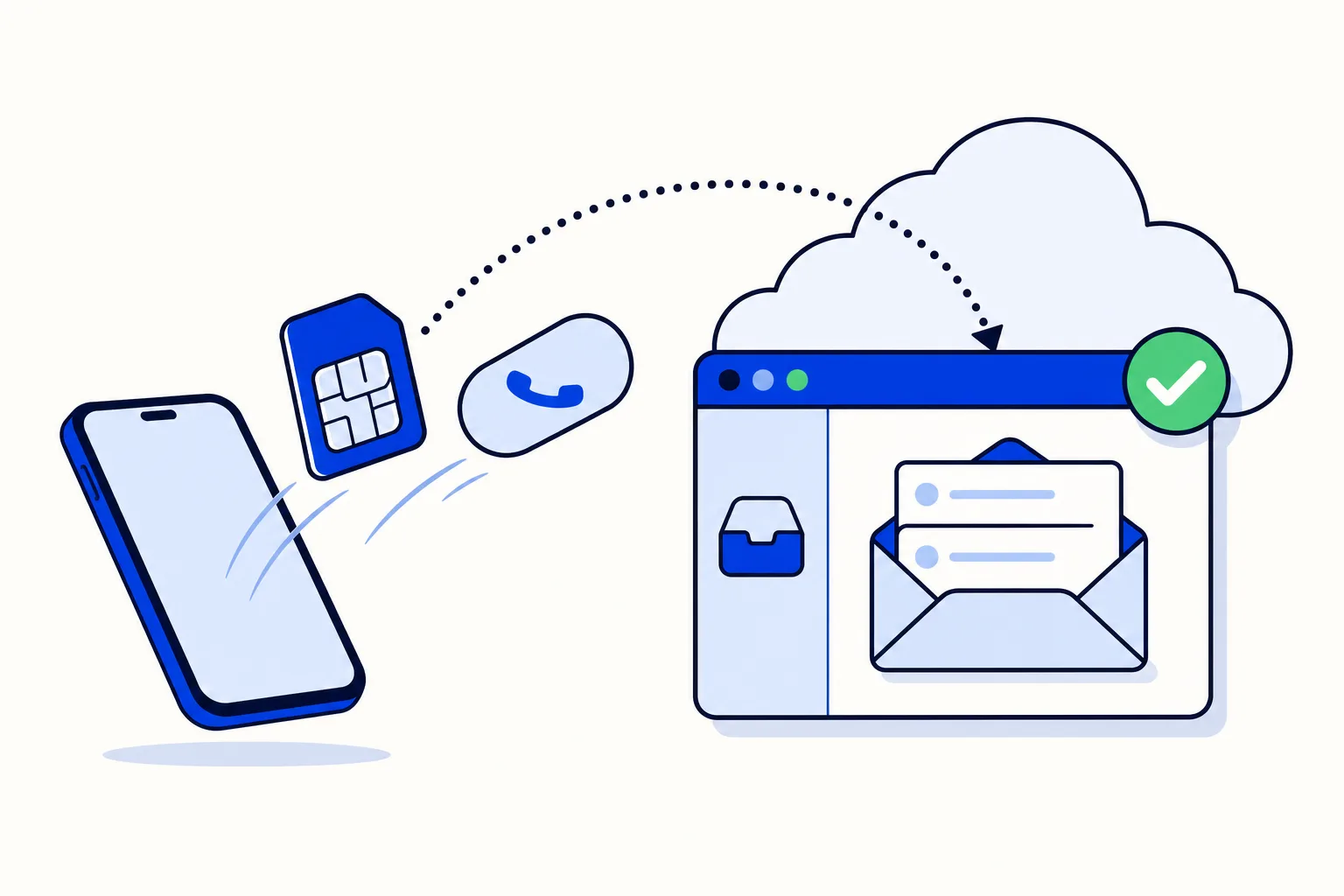
The most common reason a team puts off the WhatsApp Business API is not price or paperwork. It is the fear of losing the number every customer already has saved. In practice the number is yours, it moves with you, and customers keep writing to the same contact. This guide covers what "moving to the API" means, the two ways to do it, what you need on hand, and what to check before you tell the team the inbox is live.
What does "moving the number to the API" actually mean?
WhatsApp gives businesses two ways to use a number. The WhatsApp Business app runs on one phone, plus a few linked devices. The WhatsApp Business Platform, usually called the API, runs on Meta's servers and is operated through software, such as a team inbox, instead of a handset. Meta documents the platform at developers.facebook.com.
Moving to the API means registering your existing number on the Business Platform through the inbox software you chose. Nothing changes on the customer's side:
The number stays the same. Customers keep the contact they saved and the chat thread on their own phone.
Your business name and profile photo show up as before, once you set the profile on the platform.
Messages arrive in the inbox instead of on the phone, and each team member logs in with their own account.
What does change is who holds the conversations: the company, through the inbox, rather than whoever has the handset. If you are still deciding whether that step is for you, read WhatsApp Business app vs API first.
Full migration or coexistence: which path should you take?
There are two ways to get a number from the app onto the API, and the right one depends on how your team works today.
Full migration. The number leaves the WhatsApp Business app and lives only on the API. The app on the phone stops working for that number, and every conversation happens in the inbox. This is the clean option when the whole team is ready to switch at once.
Coexistence. The number stays active in the WhatsApp Business app and is connected to the inbox at the same time. It is the gradual option: you move people over at your own pace, and nobody loses access on migration day. HellouOne supports both paths; the second one is explained in detail in WhatsApp coexistence: app and team inbox on one number.
A simple rule: if one person's phone is the business today and you cannot afford a single missed day, start with coexistence. If you already have three or more people answering and want one place for everything, go straight to full migration.
What do you need before you start?
Have these ready. Most delays come from one of them being missing.
A Meta Business account. The number is registered under your business portfolio, not under a personal profile.
Business verification. Meta asks for documents proving your legal business name and address. Without it, Meta caps how many customers you can start conversations with, so submit it early: it can take several days and runs in parallel with everything else.
The phone that can receive the code. Meta confirms ownership with an SMS or a voice call to the number. For a landline or a number behind a PBX, make sure someone can take the call.
A display name that matches your business. Meta reviews it. Use the name customers know you by, as it appears on your website or storefront; do not add slogans or extra keywords.
The number in the right state. For full migration, the number must be removed from the WhatsApp Business app before it can be registered on the API. For coexistence, it stays in the app and you link it from there.
How do you move the number, step by step?
The exact screens depend on your inbox, but the sequence is the same everywhere.
Connect the number from the inbox. Start the WhatsApp connection inside your inbox software. It opens Meta's own sign-in flow, where you pick or create the business account and enter the number.
Verify by code. Meta sends an SMS or calls the number. Type the code and the number is registered on the platform.
Set the profile. Add the display name, profile photo, business description, address, hours and website. This is what customers see when they tap your name.
Test with your own phone. Write to the number from a personal phone. Check that the message lands in the inbox, reply from the inbox, and confirm the reply arrives with the right name and photo. Send a photo and a PDF both ways.
Invite the team. Create each person's user, add them to the inbox and decide who sees which conversations.
Budget an afternoon for steps 1 to 4 if verification is already done, and a few days of overlap before you switch off the app if you are migrating fully.
What carries over, and what doesn't?
This is the part people ask about most, so here it is plainly.
What carries over:
Your phone number.
Your customers: they keep the same contact, and the chat thread they have with you stays on their own phones.
Your business identity: name, photo and description, once you set them on the platform.
What does not carry over:
Chat history from the app. Conversations that happened inside the WhatsApp Business app are not imported into the API automatically. The inbox starts recording from the moment the number is connected, and new conversations start fresh, with the full thread saved in the inbox from then on.
Labels, quick replies and the app's catalog settings. These belong to the app and need to be recreated in the inbox, usually as labels and canned responses.
If you need the old conversations, export the chats you care about from the app before you remove the number, and keep those files somewhere the team can reach. In coexistence, the app and its history stay on the phone, so there is less pressure to export.
What about the 24-hour window and templates?
The API has rules the app never showed you, and they affect how you reach customers after the move.
The 24-hour window. When a customer writes to you, a window opens in which you can reply with any free-form message. After 24 hours without a message from them, you can only reach them with a template.
Templates to start conversations. A template is a message Meta approves in advance: a reminder, an order update, a follow-up, a promotion. Meta prices them by country and by category (marketing, utility, authentication).
Free-form replies are now metered. Since October 1, 2026, Meta bills free-form replies inside the 24-hour window per message once a phone number passes 1,000 of them in a month. The first 1,000 each month stay free. The details are on Meta's page for non-template message pricing.
In practice: get a handful of templates approved before go-live, and keep an eye on monthly reply volume per number. We covered the October change in WhatsApp service messages are now paid.
How this works in HellouOne
HellouOne runs on the official WhatsApp Business API, and connecting the number is one of the guided setup steps rather than a project of its own. LIA, the setup assistant, walks you through it and proposes each change; nothing applies until you approve it.
Connecting the number. LIA opens Meta's sign-in flow from inside HellouOne, tells you which option to pick at each step, and checks that verification and the profile are complete before moving on. See how HellouOne works for the full six-step checklist.
Coexistence or full migration. Both are supported. If you keep the app, the person on the phone keeps answering there while the team works in the WhatsApp team inbox on the same number.
Assignment rules from day one. Once the team is in, LIA proposes round-robin or priority assignment and visibility levels, so the first conversations do not all land on the owner. They are explained in assignment rules in HellouOne.
Meta's fees, with 0% markup. Template and metered-reply charges are billed to you by Meta directly; HellouOne adds nothing on top. Plans start at $49 per month and are listed on the pricing page.
7-day free trial, no card. The trial includes 2 agents, 2 inboxes and 100 conversations, enough to connect the number and run the tests above. Developers who want to automate parts of the move can use the public API, documented at one.hellou.ai/docs.
What should be on the go-live checklist?
Run through this before you tell customers or the team that the inbox is on.
Business verification submitted, ideally approved, and display name accepted.
Profile complete: photo, description, address, hours, website.
A test conversation completed both ways from a personal phone, including an image and a document.
At least three templates approved: a greeting or follow-up, a utility message (order, appointment or payment reminder) and one marketing message if you plan campaigns.
Every team member logged in with their own user and added to the inbox.
Assignment and visibility rules set, so you know who gets the next conversation and who can see what.
Chats exported from the app, if you are migrating fully and need the history.
A date for switching off the app (full migration) or a plan for who keeps using it (coexistence).
Once those are ticked, the number you had on Monday is the number customers write to on Tuesday. The only thing that changed is that the whole team can answer.