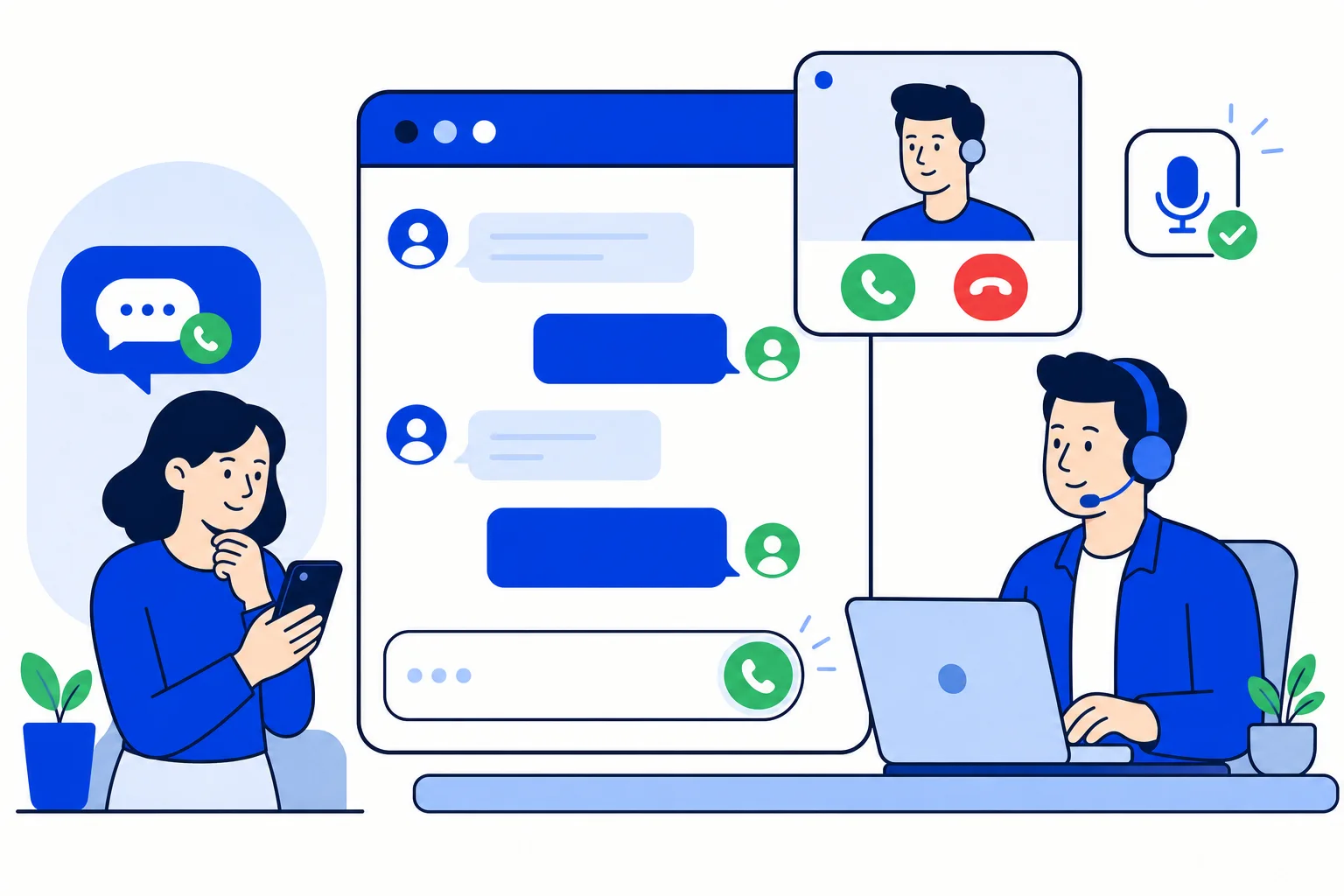
Some conversations are faster out loud. A customer comparing two options, a support case that needs three questions answered in a row, a lead who writes well, we should talk. On WhatsApp, the natural move is to call, and with HellouOne the agent can do that without leaving the browser or the conversation. WhatsApp calls are made and received inside the customer's thread, logged like any other message, and set up per inbox. This post covers what the help center documents about the feature and why having voice in the same inbox changes how sales and support teams work.
What you need
A WhatsApp inbox connected through WhatsApp Cloud, Meta's official API.
Calling enabled for your account and for the inbox. WhatsApp calling is available from the Growth plan upward; if the call options do not appear in the inbox settings, the feature is not yet enabled for your account and support can switch it on.
Microphone permission in the browser. Chrome or Edge are recommended.
Receiving a call
When a customer calls, a floating window shows their name or number. The agent presses Contestar to answer, and the call opens inside that contact's conversation, so the chat history is on screen while they talk. When it ends, the agent presses Colgar and the call is logged in the conversation with its duration. Calls ring the agent assigned to the conversation first; if nobody is assigned, the notification goes to the inbox's online agents, the ones listed in the inbox's Collaborators tab. That is worth setting up deliberately: make sure the people who should take calls are collaborators on the inbox.
Making a call
To call a customer, the agent opens the conversation and presses the phone icon. If the customer has not yet authorised calls from your business, WhatsApp sends them a permission request first, and the call goes through once they accept. One rule to plan around: calls can only be started with customers who already have an active WhatsApp conversation with you. The call is a continuation of a chat, not a cold channel, which is also what makes it welcome.
Setting it up per inbox
Call behaviour is configured in Settings, under Inboxes, in the WhatsApp inbox's Settings tab. There you can enable or disable incoming calls and control how the call button behaves, then save with Update. Because this is per inbox, a business can allow calls on its sales line and keep its notifications-only line chat-only, from the same account.
Why voice in the same inbox matters
The alternative to in-inbox calling is a separate phone, a separate log and a separate memory. The agent calls from a mobile, the call is not in the customer's record, and the next person to open the chat has no idea the conversation moved to voice. With the call inside the conversation, the thread tells the whole story: the messages, the call with its duration, and the messages after it. For sales teams, that means a lead can be moved from chat to a call at the right moment without losing context or asking for a number. For support, it means a complicated case can be resolved in a five-minute call instead of a forty-message exchange, and the resolution is logged where the next agent will look.
There is a cost angle too. On WhatsApp, each outbound text inside the service window is now billed per message, so a case that would take twenty replies can be cheaper, and faster, as one call.
How to use it in HellouOne
Confirm your WhatsApp inbox is on WhatsApp Cloud and that your plan is Growth or above. Open the inbox's Settings tab, enable incoming calls, set the call button behaviour and press Update. Add the agents who should take calls as collaborators, and ask them to allow the microphone in Chrome or Edge. Then try it on a live conversation: press the phone icon, let the customer accept the permission request, and check that the call appears in the thread with its duration afterwards. If your plan includes telephony, the call history page and the live call panel in the phone section give you the operational view across all calls; see the help center guide on call history and the live panel.
Learn more in the help center: WhatsApp calls from the browser and setting up calls in your inbox.