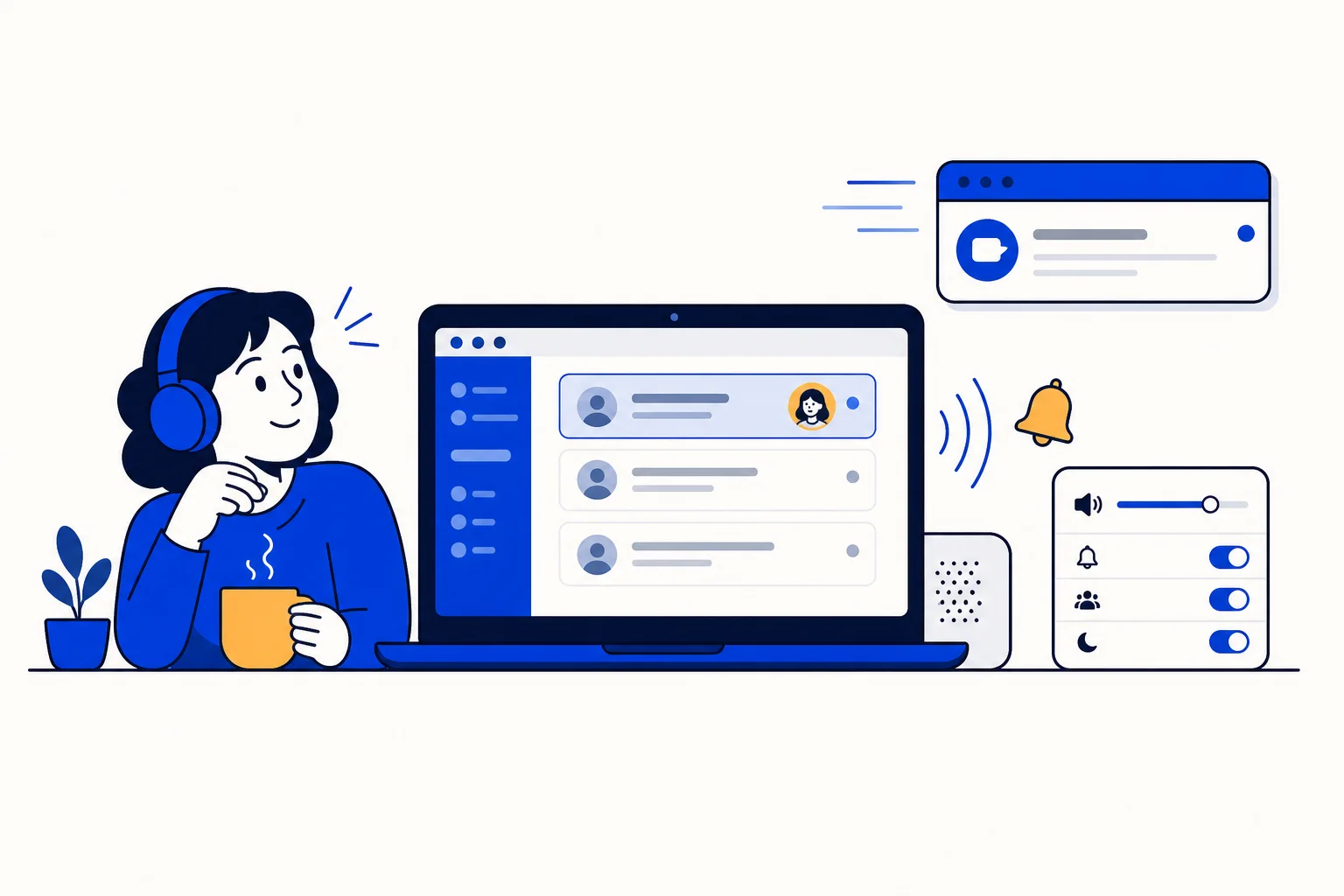
Every member of a team has a personal profile in HellouOne, and it is worth taking a few minutes to set it up well. You open it from your avatar at the bottom left of the screen, and then choose Profile Settings. Everything you change there is personal. It applies to you and to how you work, and it does not change anything for your teammates, which means you can adjust it with confidence until it fits the way you like to work. Your profile starts with your basic data. You can add a profile photo, your full name, a display name, and your email address. The display name deserves a moment of attention, because it is the name the customer sees in chat, so choose the form of your name that you want customers to know you by. Your email address is also your login, so it is more than a contact detail. If you change it, you will need to confirm the change from the email that arrives at the new address, so keep access to that inbox while you make the change. A profile also holds your personal message signature, a text that is added at the end of the messages you send. The signature can include an image if you want one, and it is added to messages sent by email, by website chat, and by API, so the people you write to receive a consistent sign off from you across channels. In the same personal area, you choose your send shortcut. You can set Enter to send a message and Shift plus Enter to add a line break, or you can set Cmd or Ctrl plus Enter to send and Enter to add a line break. Neither choice is better in itself. The right one is the one that matches your habits, so that you do not send half written messages by accident and can write longer replies comfortably. Your password is managed from your profile as well. To change it, you enter your current password and then the new one twice. If you have forgotten your password, use the Forgot your password option on the login screen instead. An administrator cannot see your password, although an admin can reset it for you if that becomes necessary. Sounds are the part of the profile that many people notice most during a busy day. You can choose a different sound for each event, so you can tell without looking at the screen whether you were assigned a conversation, whether someone mentioned you, or whether a new message arrived. The assigned and mention sounds always play. A new message never sounds for the conversation you are reading at that moment, since you are already looking at it. You also choose whether your alerts cover all the conversations you can see or only your own, and all of these sounds share one volume setting. Use the Play button to test each tone before you settle on it, including any custom tones an administrator has uploaded for the team. Two further options refine how sounds behave. One plays sounds only when HellouOne is in the background, and another repeats a reminder until you open the conversation, which is helpful if you step away from your desk. You can also turn on desktop notifications from your operating system. If the browser blocks those notifications, you will need to allow them for the site in your browser settings. Remember that the initial values in these sections are set by the admin, and any personal change you make applies only to you. Notification preferences work as a table. For each event, you choose whether you want to be notified by email, by push, by both, or by neither. The events include a new conversation, a conversation assigned to you, a mention, a new message in a conversation that is yours or one you take part in, and SLA breaches. Before the table can deliver push alerts, enable browser push notifications with the control at the bottom of the table. Finally, your profile shows your access token, a personal API key. Treat it exactly like a password, and never share it casually, because anyone who has it can act as you. Taken together, these settings shape how you appear to customers, how you sign in securely, and how HellouOne gets your attention during the day, and a short visit to your profile is enough to make all three work better for you.
Read the full guide in the Hellou help center: https://help.hellou.ai/hc/hellou/articles/1791218105-tu-perfil-datos-contrasena-sonidos-y-notificaciones