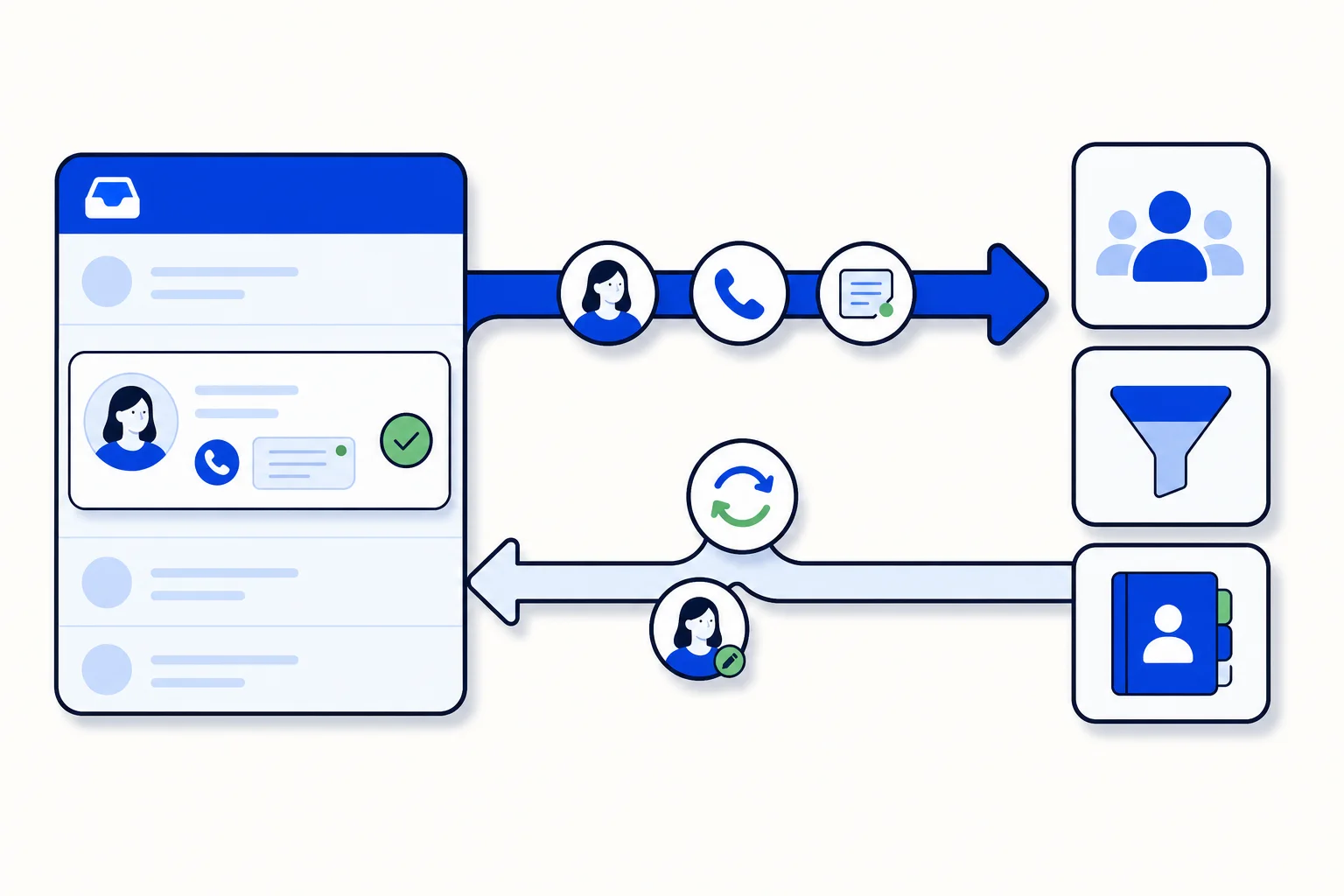
A voice campaign produces a result for every contact it reaches: interested, call back next week, wrong number, not interested. For a sales team that works in DataCRM, those results are only useful once they are in DataCRM. Until now that meant exporting a file and re-entering the outcomes, or living with a CRM that did not know what the campaign had learned.
HellouOne voice campaigns can now write their results back to DataCRM on their own. This post explains what is written, when, how you map it to your DataCRM fields and how you check that every result arrived.
When a result is written
A result is written when a campaign contact is resolved, whether an agent sets the disposition or the AI agent finishes the contact on its own. A callback request is also written as soon as it is made, before the contact closes. If the dialer later gives up on that callback, nothing more is written for it.
The call itself appears in DataCRM as a Call activity in Events. If the activity already exists, HellouOne updates it; otherwise it creates it. The subject is the campaign name followed by the disposition label, or just the campaign name when there is only a callback and no disposition.
What the note contains
The note on the Call activity carries the usual call details: outcome, duration, start time, agent, number, recording, summary and a link back to HellouOne. Campaign calls add these lines, each one only when it has a value:
Disposition: the result the agent or the AI agent recorded.
Agent notes: what the agent wrote about the call.
Call back at: the time the contact asked to be called again.
Attempt: which attempt in the campaign this call was.
Decided by: whether a person or the AI agent decided the result.
AI summary: on AI campaigns only. When it is identical to the call summary, the two are folded into one line.
Results in DataCRM: four switches per campaign
Each campaign has a Results in DataCRM section, both in the campaign wizard and in Edit campaign. It has four switches:
Write the disposition to a list field. Pick one picklist field on Contacts or Leads and map each disposition to one of its values. Saving checks the field and every value against DataCRM's live field list. A disposition left on Don't send is not written, and a value DataCRM no longer offers is skipped, never forced. A Leads field goes to the lead that matches the contact's email or phone.
Add the call notes to a text field. The notes are appended as the date, the campaign title and the notes, capped at 4,000 characters.
Schedule callbacks in DataCRM. A callback becomes a planned Call activity in DataCRM's calendar, 15 minutes long, with a subject like Call back plus the campaign name. It needs the campaign's callback switch on, it is never duplicated, and it is skipped if your DataCRM has no Call type or Planned status.
Open an opportunity for hot leads. A hot lead is an AI call routed to a person because the contact showed interest, or a disposition the campaign lists as hot. The opportunity is named after the campaign and the contact, starts at the first stage of your DataCRM pipeline and gets a close date 30 days out.
The last two switches appear only when your DataCRM allows them. If DataCRM is not connected yet, the section shows a note with a link to connect it and turn on Write campaign results.
A contact who is not in DataCRM yet is created first when the integration's push contacts setting is on. When it is off, that result is skipped rather than written to the wrong place.
Sent to CRM: check every result
Campaigns with a DataCRM mapping get a Sent to CRM column in the campaign report. Each contact shows a status badge per action, Sent, Failed, Skipped or Pending, with a plain-language reason instead of a raw error. When DataCRM returns an error without an explanation, the column says so. A supervisor can see at a glance which results reached the CRM and which need a look.
What you need to use it
A DataCRM connection with its Write campaign results switch on. It is off by default, so turning it on is a deliberate choice.
Voice campaigns, which come with Contact Center and are enabled together with your phone service.
A plan with CRM integrations: the Free Trial and every plan from Starter up.
How this works with HellouOne
HellouOne already logs calls to your CRM as activities, as described in CRM call logging with your phone system, and syncs contacts with DataCRM, HubSpot, Pipedrive and GoHighLevel. Write-back adds what only the campaign knows: the result, the follow-up and the sales opportunity. Your AI voice agents make the calls, agents handle the ones that need a person, and the sales team picks up the outcomes in the CRM they already use.
A good first step is one small campaign: map three or four dispositions, turn on callbacks, run it, and compare the Sent to CRM column with what you see in DataCRM before you switch it on for every campaign.