Some messages do not need the AI agent to think at all. A VIP contact, for example, may need to go straight to their team. Rules in the AI agent editor let you act on a message before the AI reads it. This post covers how Rules work, how they differ from other routing features and what the Test chat does and does not run.
It follows the help center guide to creating and configuring your AI agent, the reference for every label mentioned here. If you are new to the editor, start with the step-by-step guide to setting up an AI agent.
How Rules work
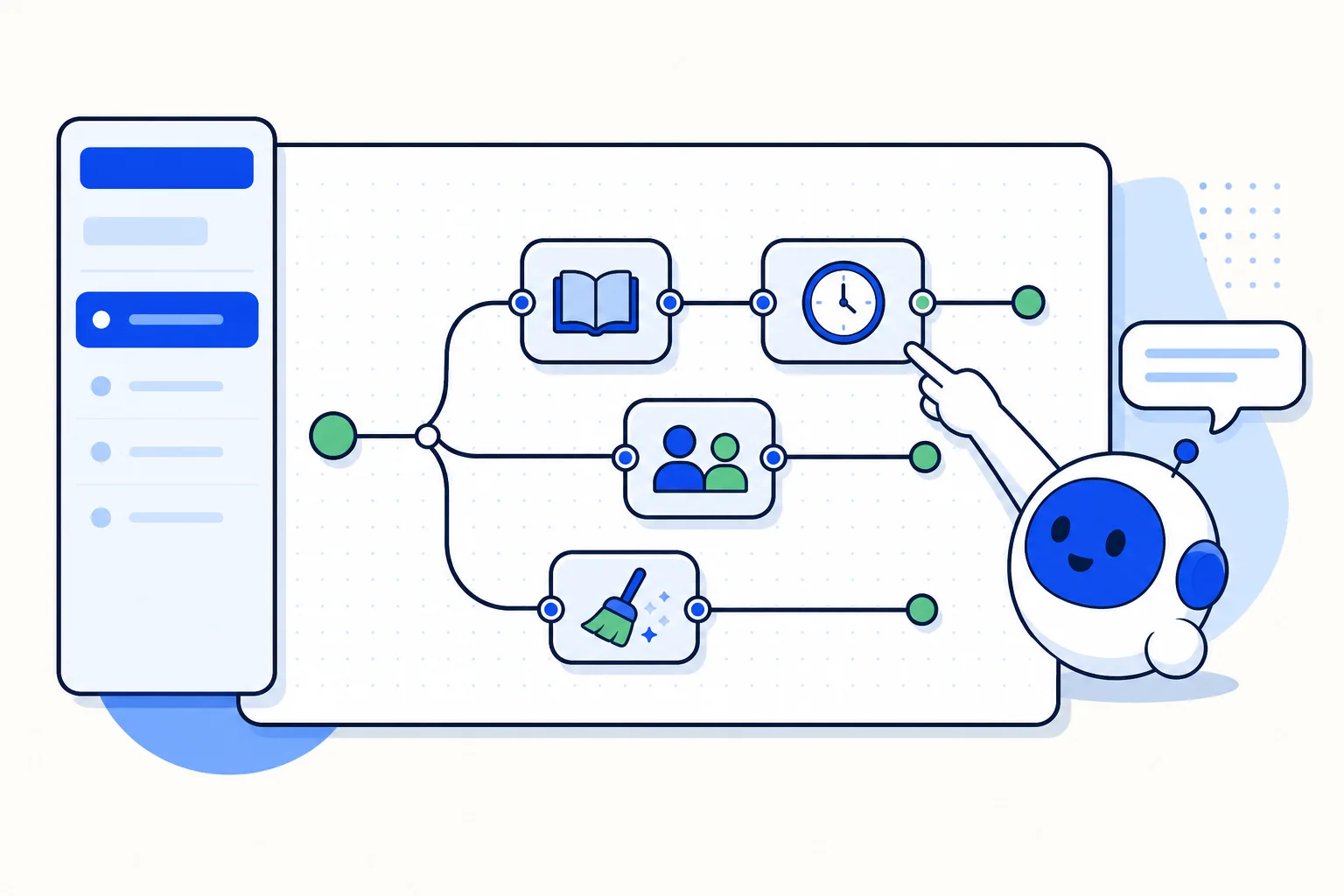
Rules are checked in order before the AI reads a message. The first one that matches runs its steps. Because the first match is the one that runs, the order of your Rules is part of how they behave. That makes Rules a good place for situations you can describe up front, where the AI agent's judgment is not needed.
Build a rule
Click Add rule and give it a Rule name.
Under When, pick one Condition. Tick Not when the opposite must hold.
Under Then, add the steps. They run in order.
The AI does not answer afterwards comes ticked by default. Leave it ticked when the rule settles the message on its own, and untick it when the AI agent should still answer after the steps.
The last option decides whether a rule is final. It comes ticked by default: when the rule settles the message on its own, the AI agent has nothing left to say. Untick The AI does not answer afterwards when you want the steps to run and the AI agent to answer as well.
An example: VIP contacts
The guide's own example is to send VIP contacts straight to their team. In practice, you add a rule named for that purpose, pick the Condition that identifies your VIP contacts, add the step that sends them to their team under Then, and leave The AI does not answer afterwards ticked. The VIP message reaches the team without the AI reading it.
Rules, Smart routing and account-wide automation rules
These three can sound alike, so here is how they differ, at concept level:
Rules live in the editor of an AI agent. You write the Condition and the steps, and they are checked in order before the AI reads a message.
Smart routing also acts before the AI agent answers, but it reviews the message with its own triggers, such as a request for a person or a legal threat, and works with your areas and its Mode: Off, Shadow or On.
Account-wide automation rules are a separate feature and have their own post.
Rules follow the conditions and steps you write. Smart routing follows its own triggers and your area descriptions. The two can hand a conversation over before the AI agent replies, so it helps to know which one you are setting.
What the Test chat does and does not run
In Test chat, you write as a customer and see how the saved AI agent answers. Here is what that means in practice:
Nothing is sent to customers and nothing changes.
Handovers and other actions are only simulated, and you see what it would run.
Custom flow tools really make their read calls (GET), but they do not run their writing steps.
If you have unsaved changes, the chat uses the saved version.
The Test chat does not run Rules, smart routing or the reply check.
Tools has its own Test button for a custom flow. It follows the same idea: read calls (GET) really run against your system, and writing steps (POST, PUT, PATCH, DELETE and actions on the conversation) are not run. To choose when each tool runs, see AI agent tools: choose when each tool runs.
Test three things in a real conversation
Because the Test chat does not run Rules, smart routing or the reply check, try those three in a real conversation. A Rule you just built will not fire in the Test chat, so a quiet test there tells you nothing about it.
Since the chat uses the saved version, save your changes first. Then put the AI agent to work on an inbox, as in the next section, and try the Rule there.
Save and put to work
Click Save.
Open Settings → Inboxes, pick the inbox and go to AI Agent Configuration (not shown on email inboxes).
Choose this AI agent in Select AI agent and click Update. From then on it answers new conversations in that inbox.
How this works in HellouOne
Only administrators create and edit AI agents in HellouOne, and your plan must include them. Rules are part of the AI agent editor, together with persona, knowledge, handover and tools.
LIA can adjust your AI agent for you and shows you each change to approve before it is applied. For example, you can ask LIA to "Show me how to create an AI agent". The help center guide has the exact labels of the editor.