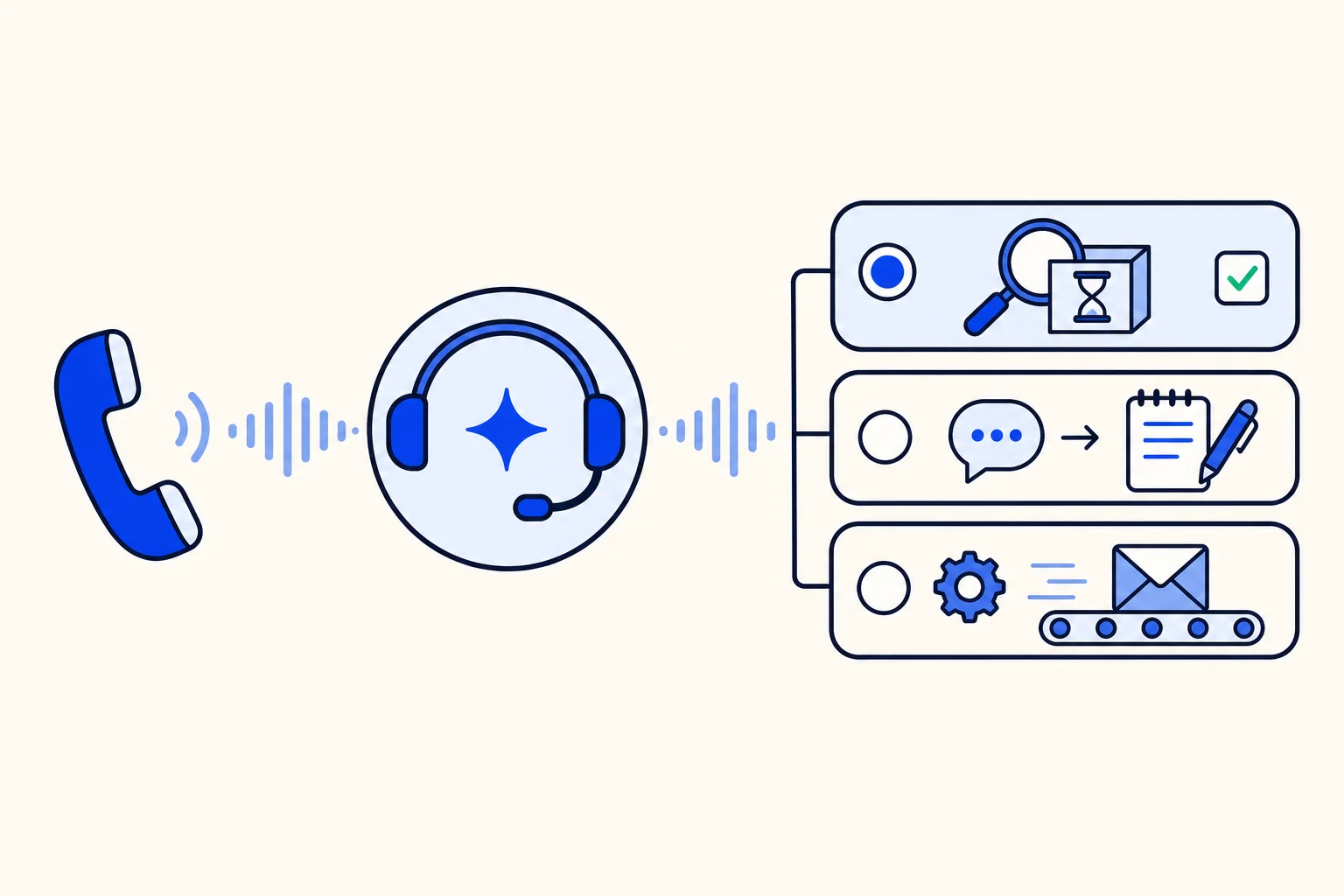
A useful AI agent does more than talk. It looks up an order, checks availability, saves a contact's details, sends a WhatsApp confirmation, logs the call in your CRM. Each of those is a tool, and until now every tool worked the same way: the AI agent called it, waited for the result, and only then replied.
That is right for a lookup, because the answer depends on it. It is wasted time for a write the customer does not need to hear about. On a phone call, that wait is dead air: a few seconds of silence while the agent saves something before it can say goodbye. HellouOne now lets you choose, tool by tool, when each tool runs.
The three run modes
Each custom tool of an AI agent has a field called When it runs, with three options. The help text under each one in the editor says what it does:
Before the reply (wait): "The AI agent waits for the result and uses it in its answer. For lookups." This is the default, and it is how every tool worked before.
After the reply: "The AI agent answers first, then the tool runs. Its next turn sees the result." On some voice engines the tool starts as the reply is being delivered rather than after it ends.
In the background: "Runs right away without waiting. The result goes to a private note, not to the AI agent. For writes such as sending a message or updating a contact."
Which mode fits which tool
A simple test works for most tools: does the AI agent need the result to write this reply?
Order status, stock, availability, prices, an account balance: yes. Keep them on Before the reply (wait).
Saving what the customer just said, after the agent tells them it has noted it: After the reply. The customer hears the confirmation at once, and the next turn can still use the result.
Sending a WhatsApp message, updating a contact, assigning the conversation, logging the call in your CRM: In the background. Nothing in the reply depends on them, so the agent does not wait.
The trade is speed against completeness. Waiting gives the most complete answer. The two deferred modes give the fastest one. Picking per tool means you only pay for waiting where the answer really needs it.
The safety switch for lookups
There is a catch with deferred modes. If someone sets a lookup to run in the background, its result goes to a private note and never reaches the AI agent, so the agent answers without the data it looked up. To prevent that, each tool also has a checkbox: The AI agent reads this tool's result to reply.
Its help text in the editor: "Turn it on for lookups: the tool then always waits. A tool that only writes (a log, a label) can stay off." With the box ticked, the two deferred modes are greyed out, with the note "This tool's result feeds the reply, so it waits for it." The API and LIA refuse the same combination, so a lookup cannot be switched to background by accident from anywhere.
Some tools always wait by design: a flow that searches your knowledge base or hands the conversation to your team cannot be deferred, because the next thing the agent says depends on it.
What stays safe
Ending a call never drops a queued write. If the AI agent says goodbye and hangs up, background work still finishes.
Results of background tools land in a private note on the conversation, so your team can see what ran.
Browser test calls are dry runs, and in the test chat, writing steps do not run, so you can try a new mode without touching real data.
Chat and voice
Run modes work in chat and on every voice engine HellouOne offers. In chat, after the reply means after the AI agent's message is posted. On a call, it is where you will feel the difference most: a background write no longer holds up the goodbye, and an after-reply save no longer holds up the confirmation.
How to set it up in HellouOne
Open Settings, AI agents and choose the AI agent.
In the AI agent's Tools section, open one of your custom flow tools.
In When it runs, pick Before the reply (wait), After the reply or In the background.
For lookups, tick The AI agent reads this tool's result to reply.
Save, then try it in the test chat or a browser test call.
Run modes apply to custom flow tools, which depend on your plan. You can also ask LIA, the admin assistant, which mode each tool uses or to change one, and approve the change before it applies, as described in LIA in HellouOne. Developers can read and set the mode in the AI agent's tool settings through the HellouOne API.
New to AI agent tools? Start with how to set up a WhatsApp AI agent, add services with connectors, and see how the same tools work on calls in your AI agent on the phone. More about the WhatsApp AI agent and AI voice agents in HellouOne.