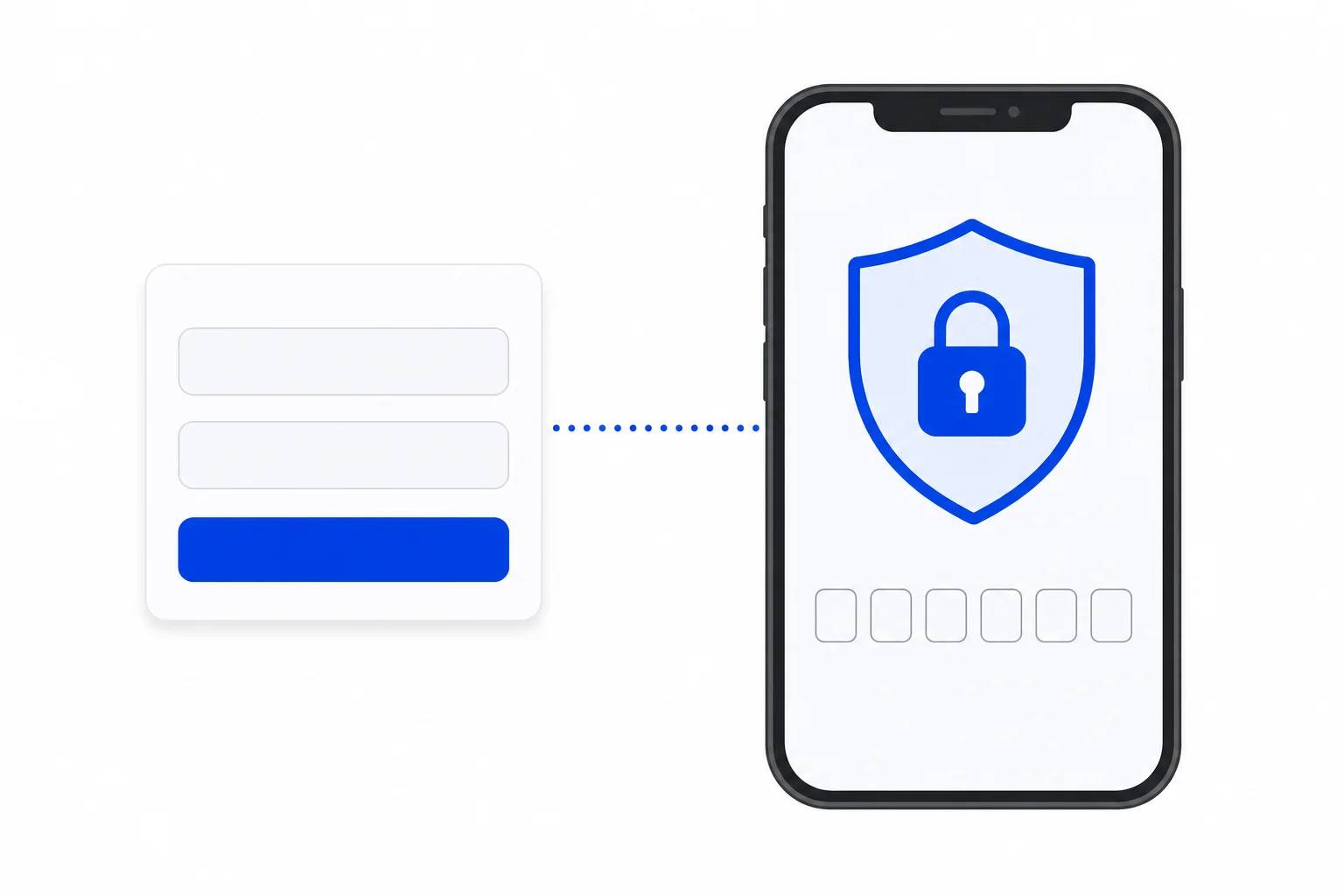
Your shared inbox holds your customers' conversations, and the people who open it every day are the best protection it has. HellouOne now adds one more layer for them: two-step verification. Each user can turn it on from their profile, and administrators can require it for the whole account. After the password, you enter a 6-digit code from an authenticator app, and that is all.
This post is for team admins and anyone who signs in to HellouOne. It explains how the feature works, how to set it up, and a short plan for rolling it out to your team.
Why a password alone is not enough
A stolen or reused password is the most common way into an account. People reuse passwords across services, and a password that leaks somewhere else can end up working on your inbox. With two-step verification, the password by itself is no longer enough: whoever signs in also needs the code from your phone.
That matters for a customer inbox because it holds personal data about your customers. If you operate in Colombia, that data falls under Ley 1581 (Habeas Data). Two-step verification is one practical way to protect access to it. For legal questions, check with your own advisor.
How it works in HellouOne
Setup happens from your profile:
Open your profile and choose to turn on two-step verification.
Scan the QR code with an authenticator app, such as Google Authenticator, Microsoft Authenticator or 1Password. Any app that generates time-based codes works.
Type the 6-digit code the app shows to confirm. From that moment, two-step verification is on for your user.
A guided tour in the dashboard walks you through these steps, in English and in Spanish, so you do not need a manual open next to you.
From then on, signing in has two moments. First you enter your password as usual. Then HellouOne asks for a 6-digit code from your authenticator app, or one of your backup codes.
Backup codes for the day you lose your phone
When you turn it on, HellouOne gives you a set of backup codes. They exist for one situation: you cannot reach your authenticator app, for example because you lost or replaced your phone. In that case you can sign in with one backup code instead of the 6-digit code.
Save them somewhere safe, such as your password manager. You can regenerate them from your profile whenever you want a fresh set. You can also turn two-step verification off from your profile if you need to.
Require it for the whole account
Individual choice is a good start, but a team is only as protected as its least protected member. For that reason, administrators can require two-step verification for the whole account from the account security settings.
Before you switch it on, the settings show how many members have not set it up yet, so you know what to expect. Once it is required, any member who has not enrolled is taken to set it up and cannot use the account until they do. Users who already have two-step verification keep signing in the same way, with their password and a code.
Until an admin requires it, people without two-step verification sign in exactly as before. Nothing changes for anyone by surprise.
A rollout plan for a team admin
Turn it on for your own user first, so you can answer questions with the screen in front of you.
Tell your team what is coming and why, and point them to the guided tour in the dashboard.
Ask everyone to set it up from their profile and to store their backup codes safely.
Open the account security settings and check how many members have not set it up yet.
When that number reaches zero, or is low enough that you are comfortable, require it for the whole account.
Review the settings from time to time, especially when new people join your team.
If you are still building your team, the post on setting up your HellouOne account and inviting your team is a good companion, and the one on account settings explains the rest of that area. For the personal side, see your HellouOne profile, where you manage your data and password.
What it does and does not do
The codes come from an authenticator app on your phone. HellouOne does not send codes by SMS or by email.
Setting it up needs a signed-in browser session. Access tokens used with the HellouOne API cannot enroll a user or change their two-step settings, so an API token can never switch someone's protection on or off.
Tools that connect to HellouOne by signing in through the HellouOne login page keep working. They simply go through the code step like everyone else.
If you work with API tokens, the post on rotating your API token and inbox HMAC key pairs well with this one: two-step verification protects the people, and rotation keeps the keys fresh.
Where this fits in your team inbox
HellouOne is a shared team inbox where people and AI agents work the same conversations. The more your customers rely on that inbox, the more it matters who can get into it. Two-step verification keeps that door closed to anyone who only has a password, without slowing down the people who belong there.
A good first step today: open your profile, scan the QR code and confirm your first code. Once you are done, you can ask your team to do the same.